<?xml version="1.0" encoding="utf-8"?><feed xmlns="http://www.w3.org/2005/Atom" ><generator uri="https://jekyllrb.com/" version="3.9.5">Jekyll</generator><link href="https://zelikos.dev/feed.xml" rel="self" type="application/atom+xml" /><link href="https://zelikos.dev/" rel="alternate" type="text/html" /><updated>2026-09-12T15:18:47-04:00</updated><id>https://zelikos.dev/feed.xml</id><title type="html">zelikos</title><subtitle>Personal site for social media links and misc development stuff.</subtitle><author><name>Akzel</name></author><entry><title type="html">DaVinci Resolve, but in a box</title><link href="https://zelikos.dev/blog/posts/2023-09-07-davincibox" rel="alternate" type="text/html" title="DaVinci Resolve, but in a box" /><published>2023-09-07T00:00:00-04:00</published><updated>2023-09-07T00:00:00-04:00</updated><id>https://zelikos.dev/blog/posts/davincibox</id><content type="html" xml:base="https://zelikos.dev/blog/posts/2023-09-07-davincibox"><![CDATA[<p>My phrasing is gonna make this sound a lot grander than it actually is, but I’m here to announce <a href="https://github.com/zelikos/davincibox">davincibox</a> as a thing I’m working on. <!--more--></p>

<p>Any who have been following me from my Linux-focused YouTubing days are likely aware that, for a time, I was hell-bent on getting DaVinci Resolve to work well on everybody’s<a href="#1">[1]</a> favorite free desktop platform. The YouTubing part has subsided a lot in recent years, but when I have needed to do video production on Linux, Resolve has remained my video editing software of choice (I do always keep an eye on the FOSS video editors, though, such as <a href="https://kdenlive.org/">Kdenlive</a>).</p>

<p>So, with that in mind, what the heck is “davincibox”?</p>

<p>A couple of years ago, I started using Fedora Silverblue. Basically, Silverblue is an image-based version of Fedora Workstation, using OSTree for atomic updates and easy rollbacks. This also means that, say, to install the required dependencies running DaVinci Resolve, you would normally need to layer those packages on top of your OS image. This is doable, but far from ideal. Fortunately, that’s where containers come in handy, and tools like <a href="https://github.com/89luca89/distrobox">distrobox</a> make using them very convenient. Instead of layering these dependencies, you can instead install them in a container, keeping a clean separation from your host OS.</p>

<p>That’s where Davincibox comes in. It’s entirely possible to use distrobox (or toolbox) to <a href="https://gist.github.com/bluesabre/8814afece711b0ca49de34c41e50b296">set this up manually</a>, but why not simplify the process? Davincibox is a ready-to-go container that you can use with distrobox to then install and run DaVinci Resolve from (but you do still need to download DaVinci Resolve from Blackmagic’s website). I have instructions for the setup process in the repo’s README, as well as an optional—but very recommended—setup script to make the process even easier.</p>

<p>This is all done <a href="https://github.com/zelikos/davincibox">on GitHub</a>, so I would encourage any suggestions or feedback to happen there if you want to get involved. Specifically, more testing that davincibox and the setup script actually work on different Linux distros and hardware setups would be great. I only have an AMD graphics card myself, so I don’t know if the Nvidia parts even work properly.</p>

<p>I’ve so far tested everything on my main machine with an AMD graphics card running <a href="https://github.com/zelikos/zeliblue">my own uBlue spin</a>, as well as in a few virtual machines running it, elementary OS 7, Vanilla OS 22.10, and Ubuntu 22.04.</p>

<p><a id="1">[1]</a> <em>Unless you prefer FreeBSD or something else</em></p>]]></content><author><name>Akzel</name></author><category term="posts" /><summary type="html"><![CDATA[My phrasing is gonna make this sound a lot grander than it actually is, but I’m here to announce davincibox as a thing I’m working on.]]></summary></entry><entry><title type="html">De-Twittering</title><link href="https://zelikos.dev/blog/updates/2023-05-02-detwittering" rel="alternate" type="text/html" title="De-Twittering" /><published>2023-05-02T00:00:00-04:00</published><updated>2023-05-02T00:00:00-04:00</updated><id>https://zelikos.dev/blog/updates/detwittering</id><content type="html" xml:base="https://zelikos.dev/blog/updates/2023-05-02-detwittering"><![CDATA[<p>As of today, my Twitter links have been removed the site. <!--more--></p>

<p>Even before the Musk takeover, I had been slowly moving more and more of my social media usage over to <a href="https://joinmastodon.org">Mastodon</a>. The takeover just spurred things along faster.</p>

<p>I don’t expect that I’ll be 100% Twitter-free anytime soon, as I have a fair few friends that use it, and I’m not one to push people to uproot. That being said, the vast majority of my social media usage is, and will continue to be, over on Mastodon instead, and that is where I’ll direct those who want to follow my happenings.</p>

<p>For those reading this, you’ve likely already seen them, but the link to my Mastodon profile is in the author info on the left of each blog post, as well as in the website’s footer.</p>

<p>Be warned that most of my recent posts have been about Final Fantasy XIV, though</p>]]></content><author><name>Akzel</name></author><category term="updates" /><category term="social media" /><summary type="html"><![CDATA[As of today, my Twitter links have been removed the site.]]></summary></entry><entry><title type="html">Website Redesign</title><link href="https://zelikos.dev/blog/updates/2022-10-28-website-redesign" rel="alternate" type="text/html" title="Website Redesign" /><published>2022-10-28T00:00:00-04:00</published><updated>2022-10-28T00:00:00-04:00</updated><id>https://zelikos.dev/blog/updates/website-redesign</id><content type="html" xml:base="https://zelikos.dev/blog/updates/2022-10-28-website-redesign"><![CDATA[<p>The website has been rebuilt using <a href="https://jekyllrb.com">Jekyll</a> and the <a href="https://mademistakes.com/work/minimal-mistakes-jekyll-theme/">Minimal Mistakes</a> theme.</p>

<p>With Jekyll also being very blog-friendly, I thought this may be a good opportunity to re-explore blogging for myself. <!--more--></p>

<p>To start, I migrated my blog posts over from <a href="https://write.as/akzel/">WriteAs</a> to <a href="/blog">here</a>. There were only seven posts to move, so it wasn’t a very difficult process; I had to change some URLs, and there is likely some outdated information in some of the posts that could be fixed in the future. Feel free to let me know on socials, or <a href="https://github.com/zelikos/zelikos.github.io/issues">open an issue on GitHub</a>.</p>

<p>I don’t expect new blog posts to be very frequent, but if I have the urge to ramble about something—which is often—it may wind up here as a new post rather than an overly long Twitter thread as I’ve done lately.</p>

<p>Other than the blog part, I also have an <a href="/apps">Apps page</a> set up has an aggregate for my development work, though <a href="/apps/rollit">Roll-It</a> is the lone occupant at the moment.</p>

<p>Anyway, the rewritten site is now live as of this blog post; I’ll smooth out any rough edges as they come up.</p>]]></content><author><name>Akzel</name></author><category term="updates" /><summary type="html"><![CDATA[The website has been rebuilt using Jekyll and the Minimal Mistakes theme. With Jekyll also being very blog-friendly, I thought this may be a good opportunity to re-explore blogging for myself.]]></summary></entry><entry><title type="html">elementary OS vs Fedora</title><link href="https://zelikos.dev/blog/posts/2020-10-09-elementaryos-vs-fedora" rel="alternate" type="text/html" title="elementary OS vs Fedora" /><published>2020-10-09T00:00:00-04:00</published><updated>2020-10-09T00:00:00-04:00</updated><id>https://zelikos.dev/blog/posts/elementaryos-vs-fedora</id><content type="html" xml:base="https://zelikos.dev/blog/posts/2020-10-09-elementaryos-vs-fedora"><![CDATA[<p>After a long, long period of distro-hopping, I had settled on <a href="https://elementary.io">elementary OS</a> as my distro of choice. That installation lasted over 18 months, but a little over two weeks ago I made the switch to <a href="https://start.fedoraproject.org/">Fedora</a>. I wasn’t necessarily unhappy with elementary OS, so…what prompted the switch?</p>

<h2 id="long-background-info">Long Background Info</h2>

<p>Prior to settling on elementary, my favorite desktop environment was GNOME; I love the Activities Overview, and seeing the GNOME desktop in action played a big part in my switch to Linux to begin with. However, the experience was plagued by some performance issues. These were most noticeable in the form of stuttery animations in the Overview; it didn’t break usability or anything, but it did make the desktop feel slower than it may have actually been.</p>

<p>I had tried elementary OS in the middle of the distro-hopping phase sometime after version 0.4.1 was released. At the time, I was still high on the idea of being able to tweak and customize my desktop–I also really liked KDE Plasma at the time–and so elementary OS, while really nice to look at, didn’t really make sense for me at the time.</p>

<p>Then came elementary OS 5.0 Juno.</p>

<p>This was a couple years into my distro-hopping, and by that point I had tried out a number of distros, some multiple times each, and I was starting to realize that I’d much rather have great defaults with maybe <em>some</em> customization available, instead of OK defaults with tons of customization. GNOME was only just beginning to see the performance improvements, and animations still felt choppy, so elementary OS Juno came at a good time for me. It was in the beta that I first looked at it, and after being tired of tweaking and customizing so many other desktops, I was enamored by Pantheon. It was restrictive, but the default look and feel was <em>amazing</em>. Much like GNOME, it also has an emphasis on multitasking via dynamic workspaces; it’s not quite like GNOME’s Activities Overview, but similar enough. Add the AppCenter ecosystem on top after Juno left beta, and elementary OS finally put an end to my long distro-hopping phase.</p>

<p>Or so I thought.</p>

<h2 id="why-i-switched-to-fedora">Why I Switched to Fedora</h2>

<p>Fast-forward to about a month ago. It was sometime after Fedora announced that 33 would have Btrfs by default. I’d heard of it before, I knew it was the default filesystem on openSUSE, but I had never really researched it much. Since Fedora made that announcement, I decided to look into Btrfs more, and it sounded interesting. So, why did I opt to switch to Fedora after spending so much time with elementary?:</p>

<ul>
  <li>Now that GNOME had seen a lot of performance improvements, I wanted to give it another good try on my main PC for a proper comparison between it and Pantheon</li>
  <li>When I first built the PC in 2017, I had set up the partitioning so it’d be easy to distro-hop, and had a lot more space allocated to my root partition than I really needed. I could’ve just resized it, but, Btrfs subvolumes seemed like a more compelling option since I didn’t plan on frequent distro-hopping anymore</li>
  <li>I had an issue with my screen flickering, that I <em>think</em> started when Ubuntu–and therefore elementary–upgraded to kernel 5.4; something that I could have solved by manually upgrading the kernel, but since I had thoughts of switching anyway, this issue only gave me more reason to do so (at the time, I also wasn’t sure that the kernel was the problem)</li>
</ul>

<p>Now, part of the reason I hadn’t done so sooner was because my NAS needed a hard drive replaced for quite a while, which I was unable to do due to financial reasons. So, I definitely didn’t want to uproot my system when I couldn’t perform backups. By this time, though, I was able to get the hard drive replaced and my NAS was up-and-running again, so after testing installation and configurations on my laptop, I took the plunge into Fedora on my main PC after 500+ days on elementary OS.</p>

<p>I expected that it would be a short-term change; my main reasonings were to test out a mostly-vanilla GNOME, as well as trying a more cutting edge OS with Wayland support and the upcoming PipeWire. At the time of writing this, though…I’m <em>very</em> torn between the two.</p>

<h2 id="desktop-environments-gnome-vs-pantheon">Desktop Environments: GNOME vs Pantheon</h2>

<p>I’ll start by discussing GNOME and Pantheon, the flagship desktop environments of Fedora and elementary OS respectively.</p>

<p>GNOME is a <em>very</em> different experience if you come from a Windows background; the default state of the desktop is simply the panel at the top, and then just your wallpaper visible below that, no desktop icons or anything like that. In my case, before switching over to Linux I had already largely moved away from using desktop icons as I preferred using the file explorer and/or working in the apps directly. So, from the beginning, GNOME’s minimalist approach really appealed to me.</p>

<p>My favorite thing about the GNOME desktop is the activities overview. At the press of one key, the Super key, you get access to a lot of functionality: the Dash on the left, containing your favorited and currently-open apps; a panel on the right with a preview of all of your open workspaces; an overview of the apps on your current workspace filling up the middle.</p>

<p>You also have access to what I would argue is the best feature: system-wide search that can also be expanded by other GNOME apps. You can search through all of your apps, all of your files, all of the settings categories; you can initiate a web search, or, with GNOME Games, search for and launch one of your games. KDE Plasma has similar functionality with KRunner, but GNOME having the powerful search on top of the overall minimal design makes for a <em>very</em> nice experience. I love it.</p>

<p>GNOME does also have an app grid that shows all of your installed apps, but I rarely even use it in favor of using the Dash or just searching.</p>

<p>Pantheon is similar to GNOME. You get a panel at the top, and a dock at the bottom with your favorited and currently-open apps; no desktop icons here, either. Unlike GNOME’s Dash, elementary OS’s dock is visible on an empty desktop. I wouldn’t say the similarities <em>end</em> there, as Pantheon has a similar feature set to GNOME, but things are done differently.</p>

<p>On the left side of the panel, you’ll find an application launcher, which also doubles as a search; it’s not as extensive as GNOME’s, as it focuses on searching your apps, as well as searching for actions within those apps, rather than acting as a system-wide search. That said, I do find myself using Pantheon’s app launcher to open apps a <em>lot</em> more than I use GNOME’s app grid.</p>

<p>Pantheon also features dynamic workspaces like GNOME—accessed via the Multitasking View—although with a horizontal layout rather than GNOME’s vertical layout. Both work similarly, but have a few differences:</p>

<ul>
  <li>GNOME allows you to drag individual apps from one workspace to another, directly from the workspace previews; in Pantheon, you have to go to the workspace the app is on and drag it from there</li>
  <li>Pantheon allows you to rearrange entire workspaces, with all the apps on the workspace moving with it; GNOME doesn’t seem to have a way to do this</li>
  <li>GNOME’s workspace preview shows the layout of the apps on the respective workspace; Pantheon’s multitasking view instead shows the icons of whatever apps are on the respective workspace, rather than a full preview</li>
  <li>GNOME’s Activities Overview displays open windows more sensibly; the windows in the overview are generally arranged more closely to their relative locations on the desktop, whereas Pantheon’s Multitasking View isn’t as good here: a window that was on the right side of your desktop will often go to the left side in the overview and vice versa</li>
</ul>

<p>A big difference between the two is how these features are accessed: with GNOME, everything is all-in-one in the Activities Overview. Pantheon takes a more modular approach; the multitasking view is entirely separate from the application launcher, with no way to launch apps from it. Instead, it’s focused on workspace management. The application launcher is focused on launching apps, as well as searching for and activating extra actions these apps might provide; i.e. searching for an app in <a href="https://appcenter.elementary.io/">AppCenter</a> (elementary’s “app store”), opening a specific settings page, or launching a new private window of your web browser.</p>

<p>For convenience, I think I prefer GNOME’s all-in-one approach. From a technical viewpoint though, I appreciate Pantheon’s modular approach.</p>

<p>I won’t go into it in much detail, but there’s also the default styling of each desktop; GNOME has its own default stylesheet, Adwaita, and Pantheon uses the unnamed(?) elementary stylesheet. Overall, while GNOME’s Adwaita does look good, I prefer elementary’s style. The elementary team is also working on a <a href="https://blog.elementary.io/platform-changes-in-elementary-os-6/">brand new stylesheet</a> (dubbed greenfield, based on their <a href="https://github.com/elementary/stylesheet">GitHub repository</a>) for the upcoming elementary OS 6, and it looks <em>amazing</em>.</p>

<p>One key advantage GNOME has over Pantheon is extensions, which can provide extra functionality to the GNOME shell. For example, two popular extensions, ArcMenu and Dash to Dock, let me put together a very similar layout to Pantheon.</p>

<p>There are a lot of extensions available, but the biggest downside is that new releases of GNOME can often break them. The more popular extensions usually keep up with new GNOME releases just fine, but it’s worth remembering that it isn’t a stable API.</p>

<p>In my case, I like keeping my use of extensions to a minimum as I’m fairly comfortable with the vanilla GNOME workflow. The extensions I do use give me an experience closer to Pantheon, though, so…</p>

<p>Choosing between the two desktops is <em>very</em> hard for me, but Pantheon just barely edges out GNOME.</p>

<h2 id="technical-differences">Technical differences</h2>

<p>That was a lot to say on the desktop environments, and honestly this section is probably gonna be shorter. As it’s based on Ubuntu, many of my comparisons between elementary OS and Fedora will largely be a matter of Ubuntu vs Fedora; the biggest differences that elementary OS have with Ubuntu are the Pantheon desktop, and the AppCenter ecosystem. So, that being said, let’s start with availability of apps.</p>

<p>My order of preference for installing apps these days is Flatpak -&gt; the distro’s repositories -&gt; snap or AppImage -&gt; adding an external repository (like a PPA on Ubuntu, or COPR on Fedora). With that in mind…both distros have my app needs covered, because most of what I install comes from <a href="https://flathub.org">Flathub</a>, and everything else is filled out by snaps or just from the distro’s repos. For anything I do need to install from the distro’s repos, though, Fedora does have elementary OS beat: Fedora has a 6-monthly release cycle, whereas elementary OS is based on the LTS releases of Ubuntu, meaning ~2 years between major releases. While elementary’s first-party apps, and those in AppCenter, are kept updated through most of that cycle, everything else comes from the Ubuntu repos. Fedoras packages are updated more frequently than elementary’s non-curated ones.</p>

<p>That being said, aside from Mesa drivers, I rarely actually <em>need</em> any of those non-curated packages to be updated so frequently. I might like being on the cutting edge, but the LTS base is perfectly fine.</p>

<p>While I do largely prefer Flatpaks to snaps, I do still use some snaps, and they generally work better on Ubuntu-based distros like elementary.</p>

<p>In Fedora’s favor, though, I do <em>like</em> being on the cutting edge even if I don’t need to be, and the Fedora repos do have the Pantheon desktop available, as well as many elementary apps. The Pantheon desktop has some missing parts, though, and there are some quirks that aren’t present on elementary—understandable since Pantheon was first developed with Ubuntu in mind, with work ongoing to make it more distro-agnostic. Still, it is usable.</p>

<p>That said, I prefer Pantheon to GNOME, and while I do appreciate the work being done to package and maintain Pantheon on Fedora, the most complete Pantheon experience <em>is</em> on elementary OS, as is their AppCenter ecosystem.</p>

<p>Finally, I want to talk APT vs DNF. APT is the package manager used by Ubuntu, whereas DNF is used in Fedora. APT feels faster to me, but DNF’s output is a <em>lot</em> easier to read, even while providing more information; doing a <code class="language-plaintext highlighter-rouge">dnf search &lt;package&gt;</code> lists the results by different criteria, whereas <code class="language-plaintext highlighter-rouge">apt search &lt;package&gt;</code> is one long alphabetical list (the <code class="language-plaintext highlighter-rouge">--names-only</code> flag for apt helps this somewhat).</p>

<h2 id="ideals">Ideals</h2>

<p>Perhaps the biggest reason I favor elementary OS is because I believe that they truly want to push desktop Linux forward, a noteworthy example being the <a href="https://www.indiegogo.com/projects/appcenter-for-everyone#/">AppCenter for Everyone</a> initiative. They also provide great documentation for developers to <a href="https://developer.elementary.io/">get started writing apps</a>. It doesn’t quite cover everything, but it’s a great starting point.</p>

<p>I also want to clarify that the above isn’t meant to be a knock <em>against</em> Fedora or GNOME, I’m just much more familiar with the elementary side of things, having gone through their documentation myself and writing a <a href="https://appcenter.elementary.io/com.github.zelikos.rannum/">simple app</a> of my own.</p>

<h2 id="going-forward">Going Forward</h2>

<p>Going forward, I’ll stick with Fedora at least until Fedora 33 comes around, as I want to see how the upgrade process goes. My plan beyond that is to wait until elementary OS 6 is released before switching back, but I might do so sooner. Not sure yet. We’ll see if Fedora 33 with GNOME 3.38 blows my mind or not.</p>

<p>After I switch back, I do expect to keep Fedora around in GNOME Boxes; it runs surprisingly well in a VM.</p>

<p>Both operating systems are fantastic, and while elementary OS remains my favorite, Fedora has turned out to be a <em>very</em> solid #2.</p>

<p>Gonna miss DNF when I’m back on elementary, though…</p>]]></content><author><name>Akzel</name></author><category term="posts" /><category term="linux" /><category term="elementary os" /><category term="fedora" /><category term="gnome" /><summary type="html"><![CDATA[Comparisons between elementary OS and Fedora, two of my favorite Linux-based operating systems.]]></summary></entry><entry><title type="html">Why elementary OS is the Best for Linux Newcomers</title><link href="https://zelikos.dev/blog/posts/2019-04-08-elementary-os-best-for-newcomers" rel="alternate" type="text/html" title="Why elementary OS is the Best for Linux Newcomers" /><published>2019-04-08T00:00:00-04:00</published><updated>2019-04-08T00:00:00-04:00</updated><id>https://zelikos.dev/blog/posts/elementary-os-best-for-newcomers</id><content type="html" xml:base="https://zelikos.dev/blog/posts/2019-04-08-elementary-os-best-for-newcomers"><![CDATA[<p>So, you’ve made the decision to switch to Linux. But… where do you start?</p>

<p>Let’s be honest: There are a <em>lot</em> of Linux distributions out there. While you’re usually safe going with one of the bigger names, like Ubuntu or Fedora, it can be pretty hard, <em>especially</em> for a newcomer, to sort out the good from the bad. There are some great tools that help smooth out this problem, though; I can very much recommend <a href="https://librehunt.org">LibreHunt</a> if you’re stuck on choosing the right Linux distro. However, you will <em>still</em> be presented with multiple options; even then, you have the choice of which desktop environment to choose. Now, more choice isn’t inherently a bad thing, but it can be very daunting for Linux newcomers. So… Where do we go from here?</p>

<p>There is no one right answer for <em>everybody</em>. Every individual has their own needs. That being said, I’d like to tell you about the Linux distro that I believe is <em>the best</em> option for Linux newcomers, whether they opt to stick with it long-term or not: <a href="https://elementary.io">elementary OS</a>.</p>

<!--more-->

<h2 id="refreshingly-restrictive">Refreshingly Restrictive</h2>

<p>As one <a href="https://www.forbes.com/sites/jasonevangelho/2019/01/25/elementary-os-how-i-learned-to-stop-tweaking-and-love-the-workflow/#53d3b86b3bae">Jason Evangelho put it</a>, elementary OS is <strong>refreshingly restrictive</strong>. In a world known for allowing people to tweak and customize their systems, elementary OS <em>doesn’t</em> embrace that aspect of Linux. That’s not to say that it’s <em>impossible</em>; it is still <em>your</em> computer, and you can do with it what you like, but elementary OS is designed to provide an excellent out-of-the-box experience, and it definitely succeeds.</p>

<h2 id="an-intuitive-interface">An Intuitive Interface</h2>

<p>Often, people argue in favor of Linux distros like Linux Mint for newcomers, as the interface is familiar to those coming from Windows. I understand where they’re coming from, but I believe that first impressions are very important: if the interface is familiar, they may think that the overall experience will be exactly what they’re used to on Windows. If the interface is unique, they should understand that the experience will be different–because it <em>is</em>.  Linux desktop environments shouldn’t try to emulate Windows; they should provide an excellent user experience on their own. elementary OS does this <em>very</em> well.</p>

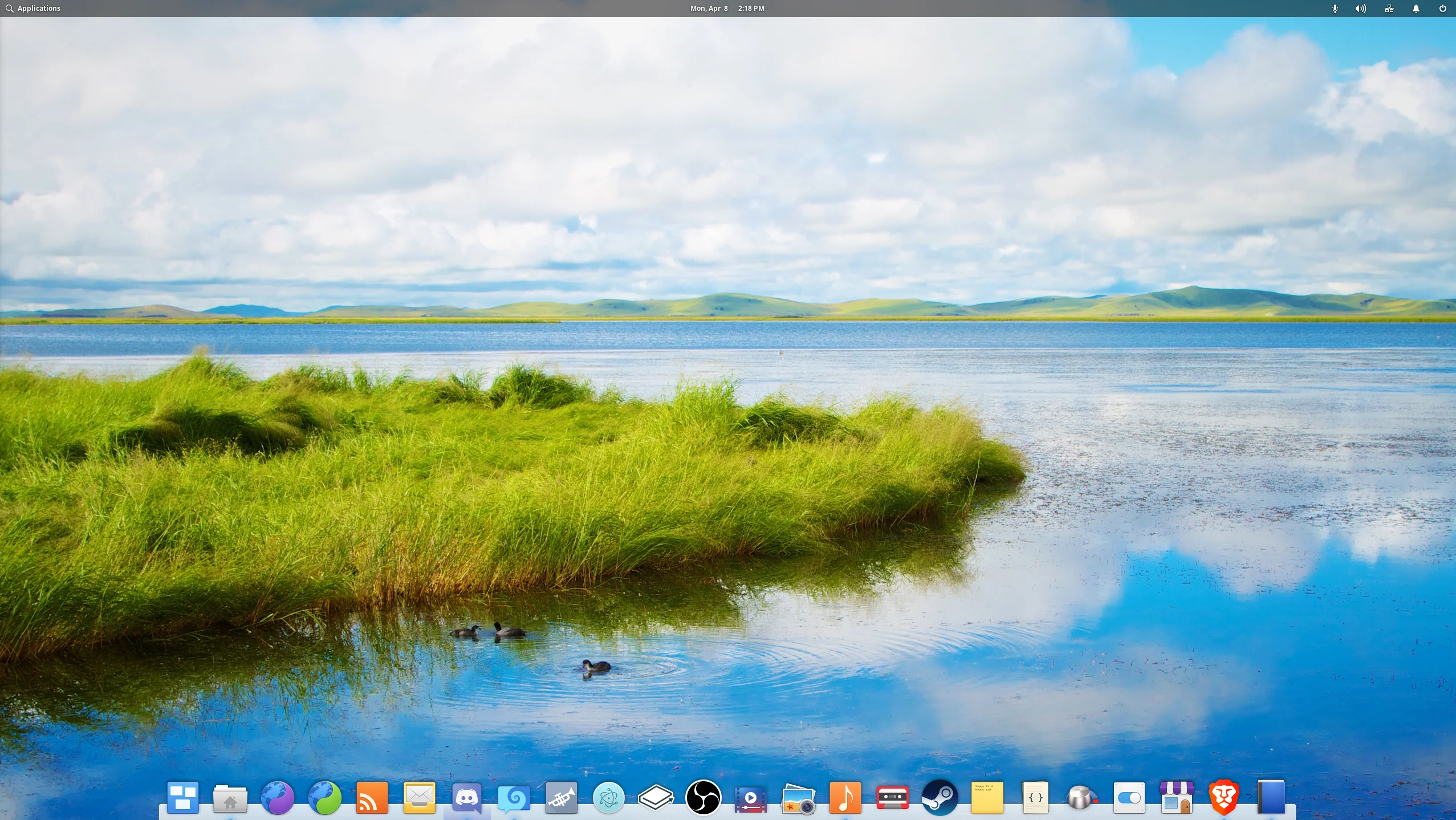
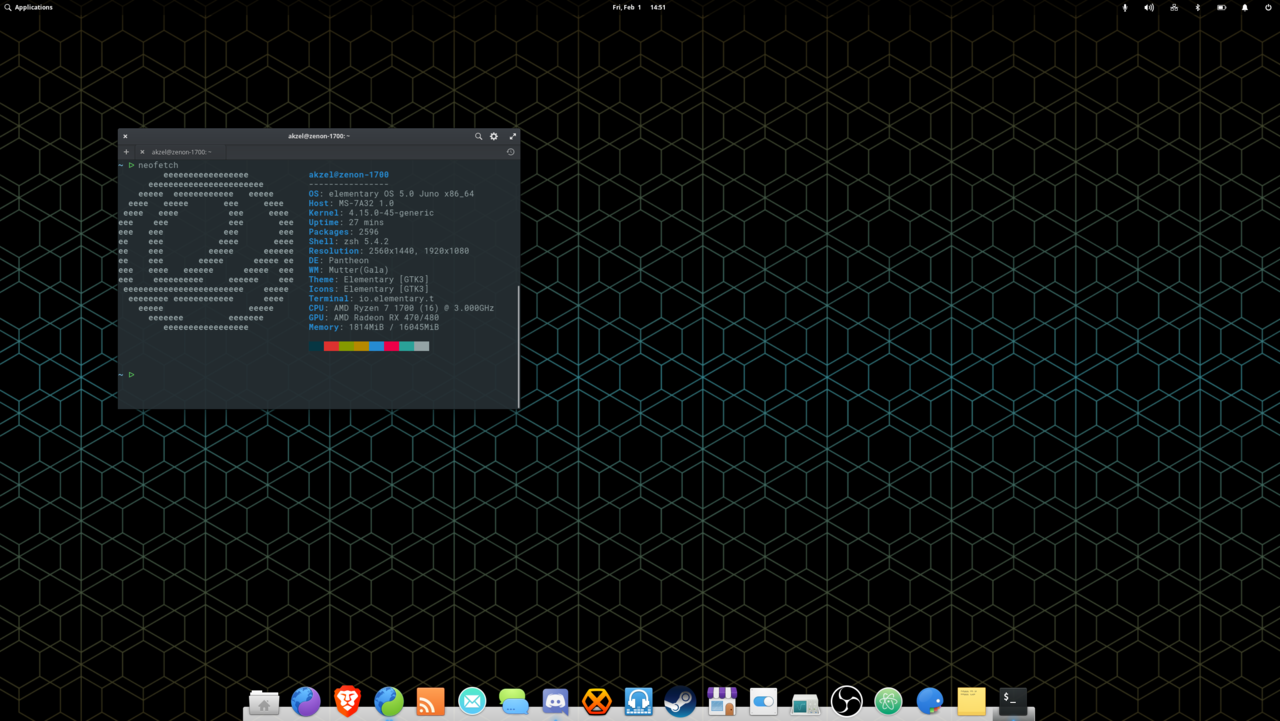
<p>elementary OS comes with the Pantheon desktop environment, designed by the elementary team. Pantheon features a panel at the top, with an Applications launcher on the left, a clock/calendar in the center, and system indicators on the right. At the bottom is a dock, which allows for quick access to your favorite apps, as well as those that are currently in use.</p>

<p><img src="https://spee.ch/@akzel94:0/Screenshot-from-2019-04-08-14-18-41modified.png?outpoint=879cb1ff9b955b5bcdc7bf195e29e2ff75235415531d7ab0fe6bdf2baa2700c8:0" alt="elementary OS desktop" /></p>

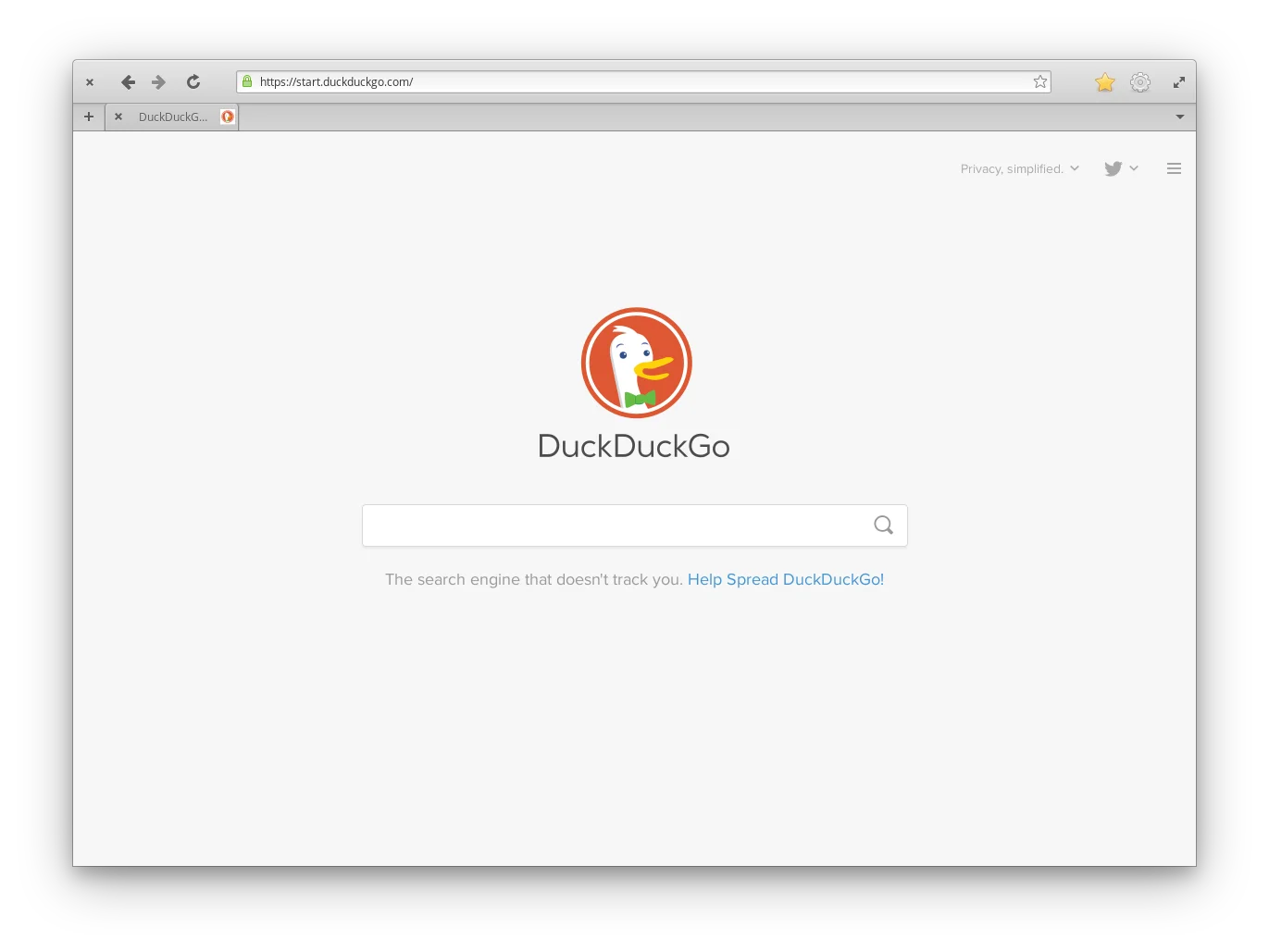
<p>Application windows feature a Close button on the top-left, and a Maximize button on the top-right, as well as any application-specific controls in between. It may seem odd for Close and Maximize to be separate, but it does prevent things like mistakenly clicking Close when you want to Maximize.</p>

<p><img src="https://spee.ch/@akzel94:0/Screenshot-from-2019-04-08-14-22-49modified.png?outpoint=ad8b2e59bb7db290a963ee637fae31db5e7df12319dec037f104d70cdcd4c860:0" alt="Epiphany web browser in elementary OS" /></p>

<p>One complaint I hear a lot about elementary OS is the lack of a minimize button… but they often don’t elaborate past that. So, there’s no minimize button. So what? It’s not <em>impossible</em> to minimize windows; there’s simply less emphasis on doing so. Applications designed for elementary OS are built to save their states when closed; in other words, when you close an application, the next time you open it, it will be just as you left it. So, there’s no real need to minimize most made-for-elementary apps.</p>

<p>That being said, not every application <em>is</em> made for elementary. So, what do you do if you want an application to be running, but out of the way? You can minimize it in multiple ways: clicking the application’s icon in the dock, or with they keyboard shortcut Super+H (‘Super’ being the Windows key on many keyboards). Alternatively, you can move the app to another workspace via the Multitasking View.</p>

<p><img src="https://spee.ch/@akzel94:0/Screenshot-from-2019-04-08-14-26-54modified.png?outpoint=null:null" alt="Multitasking View shortcut in the elementary OS dock" /></p>

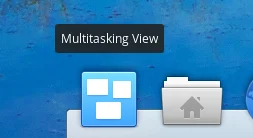
<p>On a fresh elementary OS installation, there is a shortcut to the Multitasking View on the dock; you can also press Super+S. From there, you can easily drag and drop applications between different, dynamically-created workspaces.</p>

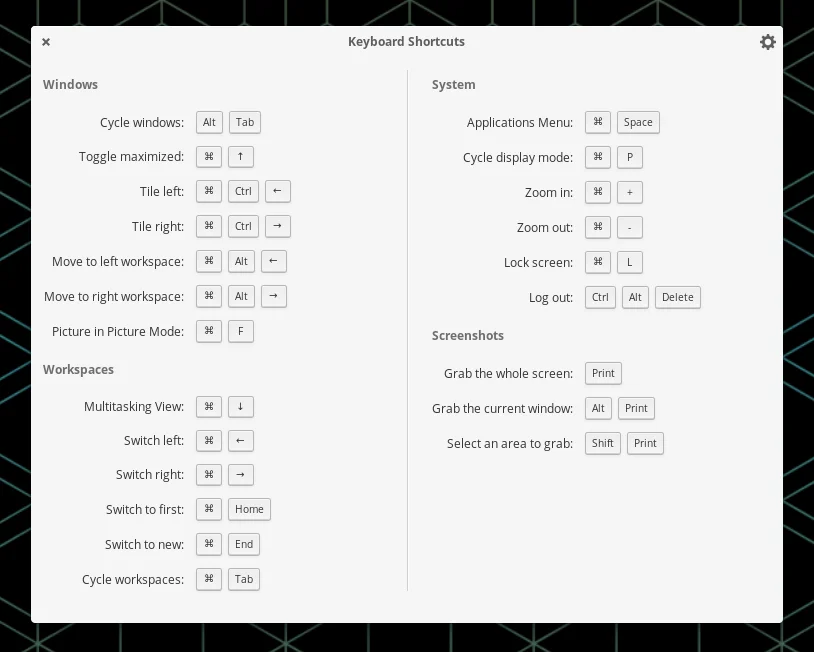
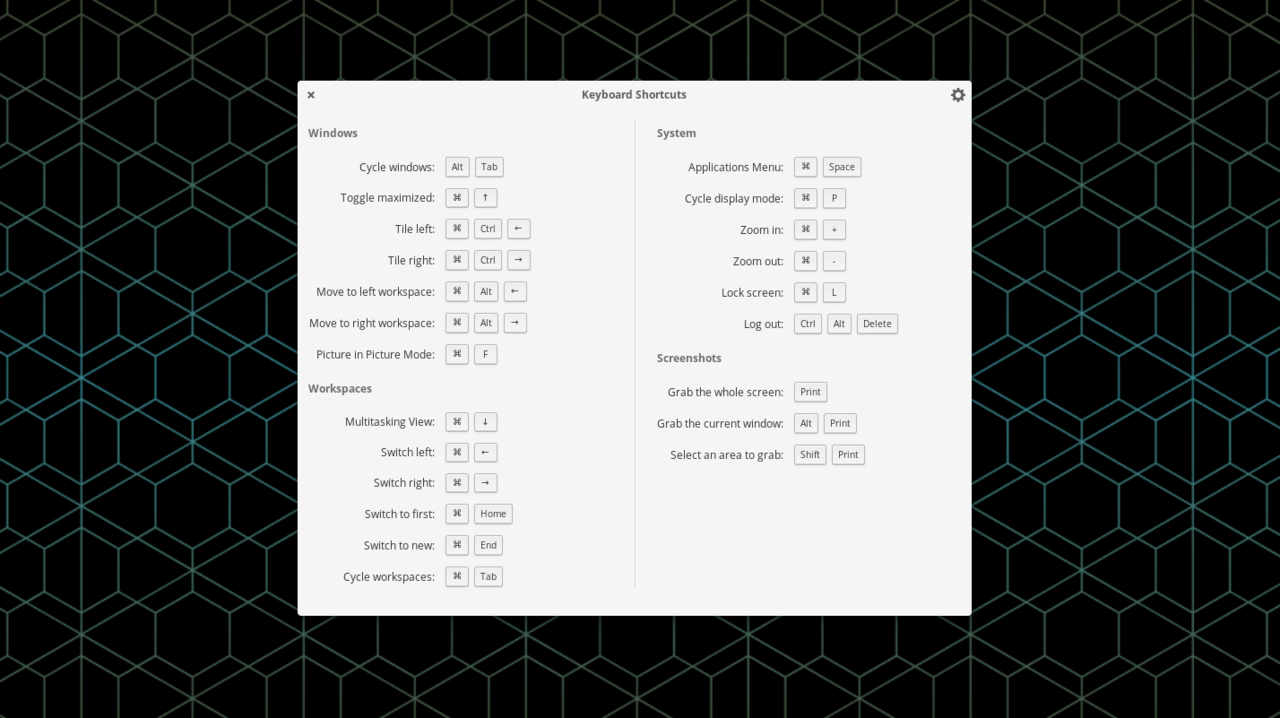
<p>Speaking of keyboard shortcuts, if you press Super by itself, you get a nice overview of some very handy ones.</p>

<p><img src="https://spee.ch/@akzel94:0/Screenshot-from-2019-02-03-17-33-10modified.png?outpoint=null:null" alt="elementary OS keyboard shortcuts overview" /></p>

<p>Finally, you only need to click once to open files and folders. I’ll admit that this is weird at first, and it does take some getting used to (old habits are hard to break, after all), but it <em>does</em> make more sense, as it’s a <em>consistent</em> experience: when you open an app from the Applications launcher, you click on it <em>once</em>. When you open an app from your dock, you click <em>once</em>.</p>

<p>On Windows, however, if you launch an app from the taskbar or the Start menu, you click on it <em>once</em>, but you have to <em>double</em>-click desktop icons, and you have to <em>double</em>-click on files and folders to open them. That’s not very intuitive.</p>

<h2 id="appcenter">AppCenter</h2>

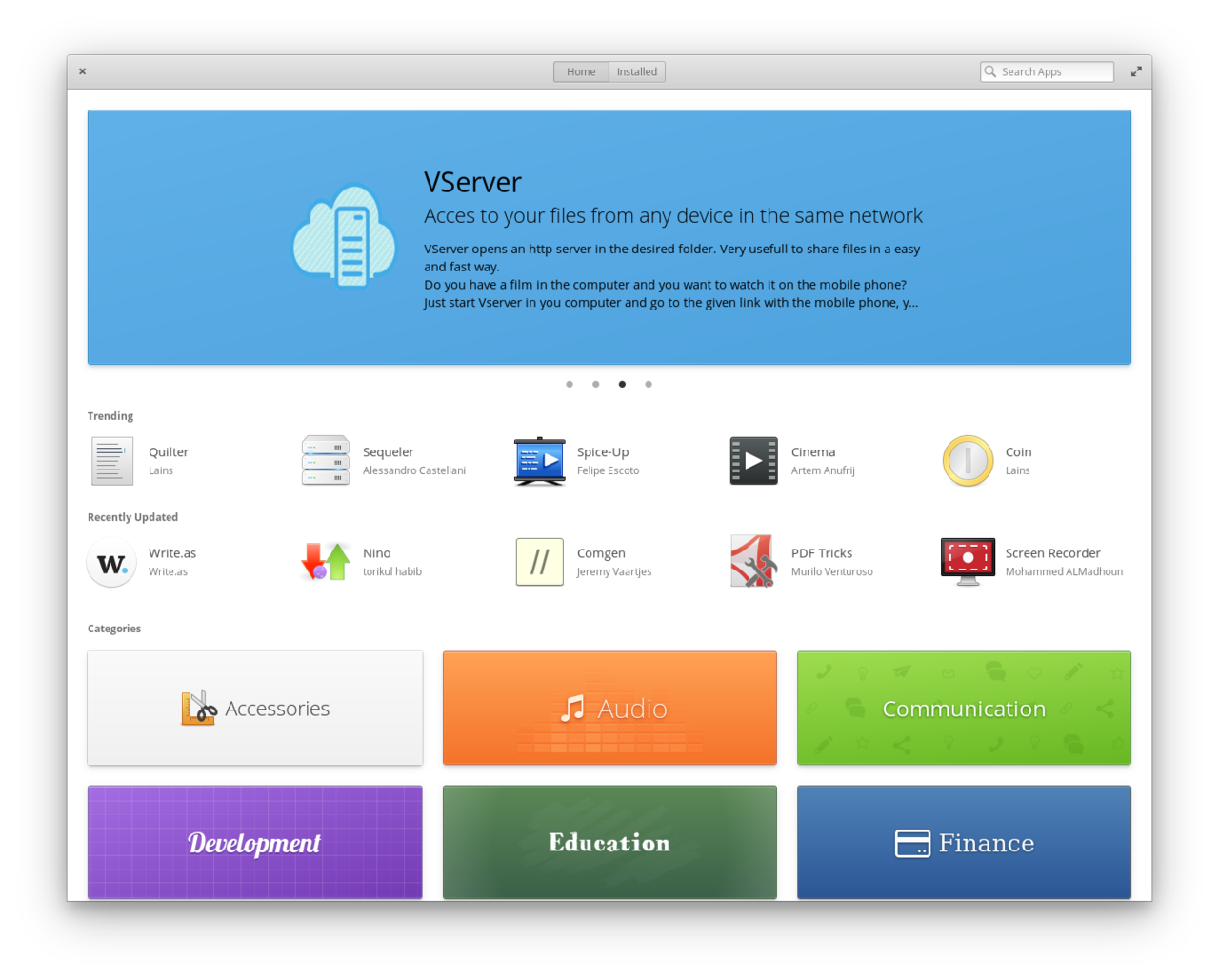
<p>Unlike on Windows, you won’t get your software by going off and downloading it from websites; instead, you can find most of what you’ll need through AppCenter.</p>

<p><img src="https://spee.ch/@akzel94:0/Screenshot-from-2019-02-03-19-03-03modified.png?outpoint=null:null" alt="elementary OS AppCenter" /></p>

<p>Similar to the Play Store on Android phones, or the App Store on iOS, AppCenter acts as the place where you browse, install, and update your applications. Most are available for free, but there are some that are available for purchase. Paid apps in AppCenter follow a pay-what-you-want model; developers can set a suggested price for their apps, but users are free to choose any price they want, be it higher or lower than what is suggested. This does also include $0; you will never be <em>forced</em> to pay for an app, but when the app has an update available, you will either need to select $0 again to update it, or pay for the app. This allows users to try any app out for free, but also let’s them be reminded if they haven’t paid yet.</p>

<p>AppCenter is great for developers, too; the pay-what-you-want model provides a method of earning money from their hard work, and the elementary team has put a lot of work into providing a system for developers to <a href="https://developer.elementary.io">get started making apps</a> as easily as possible.</p>

<h2 id="conclusion">Conclusion</h2>

<p>I’m a firm believer that elementary OS is one of the very best operating systems available. With a cohesive design, a very intuitive interface, and a great app ecosystem with AppCenter, it’s very hard to beat. If you’re a newcomer to Linux, I strongly encourage you to give it a try.</p>]]></content><author><name>Akzel</name></author><category term="posts" /><category term="linux" /><category term="elementary os" /><summary type="html"><![CDATA[Why elementary OS is one of the best options for newcomers to the Linux world.]]></summary></entry><entry><title type="html">DaVinci Resolve 15 on elementary OS &amp;amp; Ubuntu</title><link href="https://zelikos.dev/blog/guides/2019-04-05-resolve-15-on-ubuntu" rel="alternate" type="text/html" title="DaVinci Resolve 15 on elementary OS &amp;amp; Ubuntu" /><published>2019-04-05T00:00:00-04:00</published><updated>2019-04-05T00:00:00-04:00</updated><id>https://zelikos.dev/blog/guides/resolve-15-on-ubuntu</id><content type="html" xml:base="https://zelikos.dev/blog/guides/2019-04-05-resolve-15-on-ubuntu"><![CDATA[<p><strong><em>Last updated on April 5, 2019</em></strong></p>

<p><em>Note: This guide currently only covers setup and installation for users with AMD graphics cards, as I lack Nvidia hardware to test with at this time.</em></p>

<h2 id="introduction">Introduction</h2>

<p>Ah, video editing on Linux…</p>

<p>Many professional video editors would argue that the options we have available aren’t quite up to the task, like Adobe Premiere or Final Cut Pro are.</p>

<p>As far as free and open source video editing software goes, we <em>do</em> have quite a few options. OpenShot, Kdenlive, Shotcut, and a newer one, Olive, just to name a few. All of them are absolutely <em>usable</em>, but perhaps not at the level that a more professional user would need. In my own experience, the most common issues with them are performance and stability (though, Kdenlive will have a new, refactored release soon, and Olive is very promising for performance).</p>

<p>So, maybe the FOSS options don’t meet your needs. What else do we have available? Two of the most prominent, if not only options, are Lightworks and DaVinci Resolve. Lightworks has always felt weird to use for me, but if you’re comfortable using it, then more power to you. However, I believe that DaVinci Resolve is much more intuitive and easy-to-use. So, for this guide, I’ll be going over how to get DaVinci Resolve 15 up-and-running on elementary OS and Ubuntu, for users with AMD graphics cards (I’d like to cover Nvidia as well, but I currently lack the hardware to do so).</p>

<p>There is also a <a href="https://youtu.be/nuXsElMbtmI">video version of this guide</a> available, if you prefer watching over reading.</p>

<!--more-->

<h2 id="why-elementary-os">Why elementary OS?</h2>

<p>You might be wondering why this guide is for elementary OS <em>and</em> Ubuntu, rather than just Ubuntu proper. After all, Ubuntu has a much larger user base, right? While that is true, I personally believe that <a href="/blog/posts/2019-04-08-elementary-os-best-for-newcomers">elementary OS is the best option for newcomers to Linux</a>. So, I’ll be focusing this guide primarily on elementary OS, but most, if not all of the steps will work fine on Ubuntu as well.</p>

<h2 id="using-davinci-resolve-with-mp4s">Using DaVinci Resolve with MP4s</h2>

<p>Before we get into it, though, there <em>is</em> a rather big caveat that almost leads me to recommend <em>against</em> Resolve if you’re just an average user: the free version of DaVinci Resolve on Linux doesn’t support H.264, which is the codec that many video recording software uses to record MP4 videos (e.g. if you use OBS Studio, it uses the H.264 codec). DaVinci Resolve <em>Studio</em> doesn’t have this limitation, but… That sets you back about $300, and I’m focusing on the free version for this guide.</p>

<p>So, if you still want to use Resolve, you do have some options here.</p>

<h3 id="convert-existing-footage">Convert existing footage</h3>

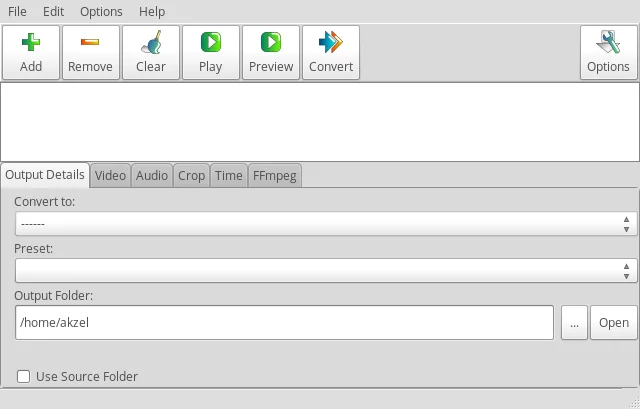
<p>First, if you want to use footage you already have recorded, you can convert it to a format that Resolve <em>does</em> accept. For this purpose, I recommend installing a program called <code class="language-plaintext highlighter-rouge">WinFF</code>, a graphical front-end to ffmpeg.</p>

<p>It will look something like this:</p>

<p><img src="https://spee.ch/@akzel94:0/Screenshot-from-2019-04-05-21-10-15.png?outpoint=b86ec3857a350599a8e8a68aa36f801cbb72f18775849b2c8c0e981e6609d27f:0" alt="Screenshot of main WinFF window" /></p>

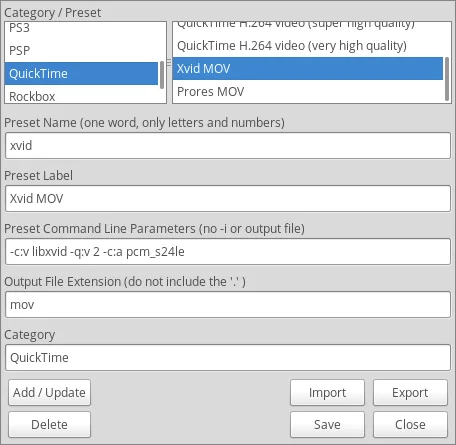
<p>From there, go under <code class="language-plaintext highlighter-rouge">Edit</code>, and select <code class="language-plaintext highlighter-rouge">Presets</code>. You’ll be creating a preset that looks like this:</p>

<p><img src="https://spee.ch/@akzel94:0/Screenshot-from-2019-04-05-16-58-10.png?outpoint=b41f98ea7b05ef114b66c5ba3bbbc392905fb61e0ed24fb72c5c0d74c38737ea:0" alt="Screenshot of an Xvid preset for WinFF" /></p>

<p>The <code class="language-plaintext highlighter-rouge">Preset Name</code>, <code class="language-plaintext highlighter-rouge">Preset Label</code>, and what <code class="language-plaintext highlighter-rouge">Category</code> you put it under are up to you; the important part is the <code class="language-plaintext highlighter-rouge">Preset Command Line Parameters</code> and <code class="language-plaintext highlighter-rouge">Output File Extension</code>. You can just stick with what I’ve shown you above, and move on to the next section if you’d like, but I’m going to go over what the parameters do. Make sure to click <code class="language-plaintext highlighter-rouge">Add / Update</code>, then <code class="language-plaintext highlighter-rouge">Save</code> when you’re done.</p>

<p><code class="language-plaintext highlighter-rouge">-c:v libxvid</code> is setting the codec to Xvid, one of several that the free version of Resolve does work with just fine; it also results in a smaller file size than other codecs I’ve tried (though it <em>will</em> still be larger than H.264 recordings).</p>

<p><code class="language-plaintext highlighter-rouge">-q:v 2</code> sets the quality level for libxvid; the lower the number, the higher the quality. In this case, I have it set to <code class="language-plaintext highlighter-rouge">2</code>, as for the video that I work with, <code class="language-plaintext highlighter-rouge">2</code> results in no noticeable loss in quality, and keeps file sizes reasonable. You can try adjusting it as you like, though, to see what works best for you.</p>

<p><code class="language-plaintext highlighter-rouge">-c:a pcm_s24le</code> sets the audio format to PCM, a type of uncompressed audio, with a <a href="https://en.wikipedia.org/wiki/Audio_bit_depth">bit depth</a> of 24.</p>

<h3 id="set-up-obs-for-davinci-resolve-compatible-recordings">Set up OBS for DaVinci Resolve-compatible recordings</h3>

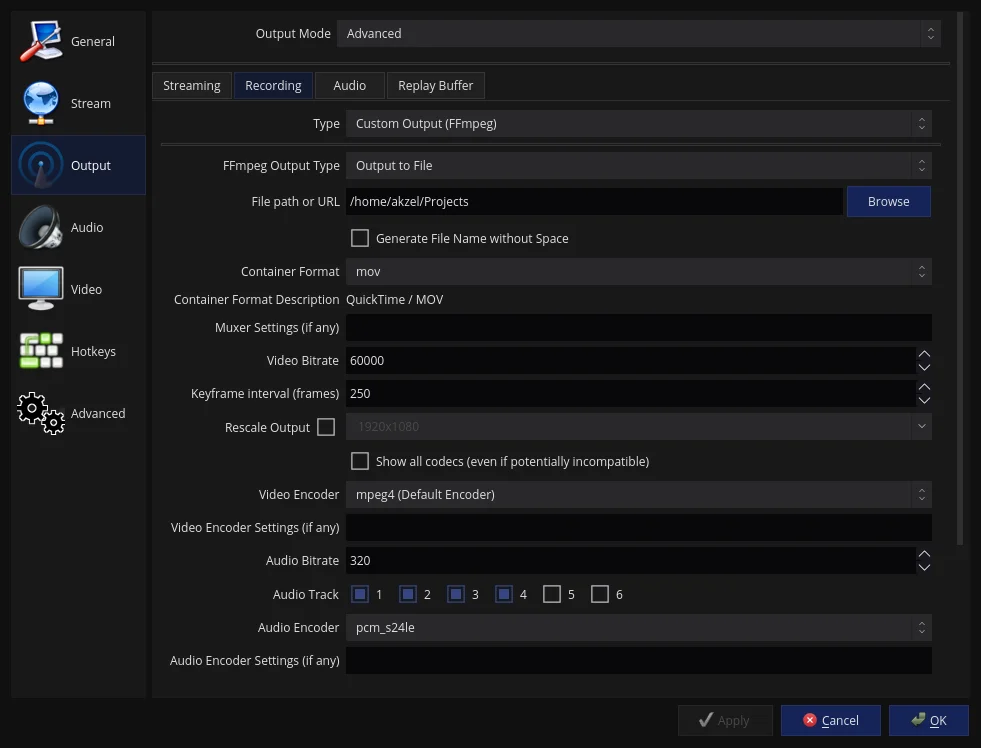
<p>I use <a href="https://obsproject.com/">OBS Studio</a> for almost all of my video recording, so here’s how to set up OBS to output video that you can directly use in Resolve, no conversion required (with a <em>big</em> thanks to <a href="https://www.youtube.com/channel/UC9G1Ds0NlZngSvhIaJDgLWQ">Silent Robot</a> for these settings).</p>

<p>Under <code class="language-plaintext highlighter-rouge">Settings-&gt;Output</code>, make sure <code class="language-plaintext highlighter-rouge">Output Mode</code> is set to <code class="language-plaintext highlighter-rouge">Advanced</code>. Then, under the <code class="language-plaintext highlighter-rouge">Recording</code> tab:</p>

<p><img src="https://spee.ch/@akzel94:0/Screenshot-from-2019-04-05-21-33-02.png?outpoint=null:null" alt="OBS Studio settings for use with DaVinci Resolve" /></p>

<p>So, first, make sure the <code class="language-plaintext highlighter-rouge">Container Format</code> is set to <code class="language-plaintext highlighter-rouge">mov</code>.</p>

<p><code class="language-plaintext highlighter-rouge">Video Bitrate</code> is largely dependent on what type of video you’re recording, but <code class="language-plaintext highlighter-rouge">60000</code> works well for me. Play with this and see what works best for you.</p>

<p><code class="language-plaintext highlighter-rouge">Keyframe interval</code> is set to <code class="language-plaintext highlighter-rouge">250</code>; if you set it too low, visual artifacts can occur unless you set the bitrate <em>really</em> high. I recommend sticking with <code class="language-plaintext highlighter-rouge">250</code>, but see what works best for you.</p>

<p><code class="language-plaintext highlighter-rouge">Video Encoder</code> is set to mpeg4, so that Resolve can recognize the video.</p>

<p><code class="language-plaintext highlighter-rouge">Audio Bitrate</code> is up to you, too; the highest you should go is <code class="language-plaintext highlighter-rouge">320</code>, but <code class="language-plaintext highlighter-rouge">192</code> is a great sweet spot.</p>

<p><code class="language-plaintext highlighter-rouge">Audio Encoder</code> is set to pcm_s24le, as Resolve is finicky with certain audio formats as well. PCM just works.</p>

<p>The other settings shown are largely dependent on your particular setup.</p>

<h2 id="prerequisites">Prerequisites</h2>

<p>So, some prerequisites. First, of course, you’ll need to <a href="https://www.blackmagicdesign.com/products/davinciresolve/">download DaVinci Resolve</a> (the download link is near the bottom of the page). I also highly recommend downloading <a href="http://www.danieltufvesson.com/makeresolvedeb">MakeResolveDeb</a>, a script by Daniel Tufvesson that converts the Resolve installer into a DEB package, to allow for proper installation on Ubuntu- and Debian-based systems. You’ll need to make sure that the MakeResolveDeb version matches the version of DaVinci Resolve you downloaded (i.e. MakeResolveDeb 15.3-1 and 15.3-2 would work with DaVinci Resolve 15.3, but may not with 15.3.1). Keep in mind that if there’s a brand new release of DaVinci Resolve, you may need to wait a day or so for MakeResolveDeb to be updated.</p>

<p>Now, for what you need to be able to <em>run</em> Resolve. DaVinci Resolve requires OpenCL or CUDA. As I lack Nvidia hardware to test with, and AMD cards can’t use CUDA, we’ll be focusing on OpenCL.</p>

<p>For OpenCL, there are two options: the proprietary AMDGPU-pro drivers, or ROCm, AMD’s open source compute stack. We’ll be going with ROCm, as AMDGPU-pro has been known to cause problems.</p>

<h3 id="install-rocm">Install ROCm</h3>

<p>The information presented here is paraphrased from, and references the <a href="https://github.com/RadeonOpenCompute/ROCm">ROCm GitHub page</a>.</p>

<p>First, make sure your computer is fully up-to-date. Then, open a terminal window, and <code class="language-plaintext highlighter-rouge">sudo apt install libnuma-dev</code>.</p>

<p>Next, you’ll need to add the ROCm apt repository:</p>

<div class="language-plaintext highlighter-rouge"><div class="highlight"><pre class="highlight"><code>wget -qO - http://repo.radeon.com/rocm/apt/debian/rocm.gpg.key | sudo apt-key add -
echo 'deb [arch=amd64] http://repo.radeon.com/rocm/apt/debian/ xenial main' | sudo tee /etc/apt/sources.list.d/rocm.list
</code></pre></div></div>

<p>Then, add yourself to the <code class="language-plaintext highlighter-rouge">video</code> group:</p>

<div class="language-plaintext highlighter-rouge"><div class="highlight"><pre class="highlight"><code>sudo usermod -a -G video $LOGNAME
</code></pre></div></div>

<p>The next step depends on what kernel you’re running. You can check with <code class="language-plaintext highlighter-rouge">uname -r</code>.</p>

<h4 id="kernel-415">Kernel 4.15</h4>

<p>If you’re on version 4.15,</p>

<div class="language-plaintext highlighter-rouge"><div class="highlight"><pre class="highlight"><code>sudo apt update
sudo apt install rocm-dkms
</code></pre></div></div>

<p>Then, reboot your computer.</p>

<p>If you are using Ubuntu, or an official Ubuntu flavor, you should be good to go. However, Ubuntu derivatives like elementary OS or KDE Neon<em>may</em> run into problems. There’s a <a href="https://github.com/RadeonOpenCompute/ROCm/issues/641#issuecomment-449115152">workaround</a>, but my recommendation is to upgrade your kernel, and reference the next section.</p>

<p>You can do so with the following command, as <a href="https://wiki.ubuntu.com/Kernel/LTSEnablementStack">outlined here</a>:</p>

<div class="language-plaintext highlighter-rouge"><div class="highlight"><pre class="highlight"><code>sudo apt install --install-recommends linux-generic-hwe-18.04 xserver-xorg-hwe-18.04
</code></pre></div></div>

<h4 id="kernel-418-or-later">Kernel 4.18 or later</h4>

<p>If you’re on version 4.18 or later,</p>

<div class="language-plaintext highlighter-rouge"><div class="highlight"><pre class="highlight"><code>sudo apt update
sudo apt install rocm-utils
</code></pre></div></div>

<p>Then,</p>

<div class="language-plaintext highlighter-rouge"><div class="highlight"><pre class="highlight"><code>echo 'SUBSYSTEM=="kfd", KERNEL=="kfd", TAG+="uaccess", GROUP="video"' | sudo tee /etc/udev/rules.d/70-kfd.rules
</code></pre></div></div>

<p>And finally, reboot your computer.</p>

<h3 id="test-rocm-installation">Test ROCm installation</h3>

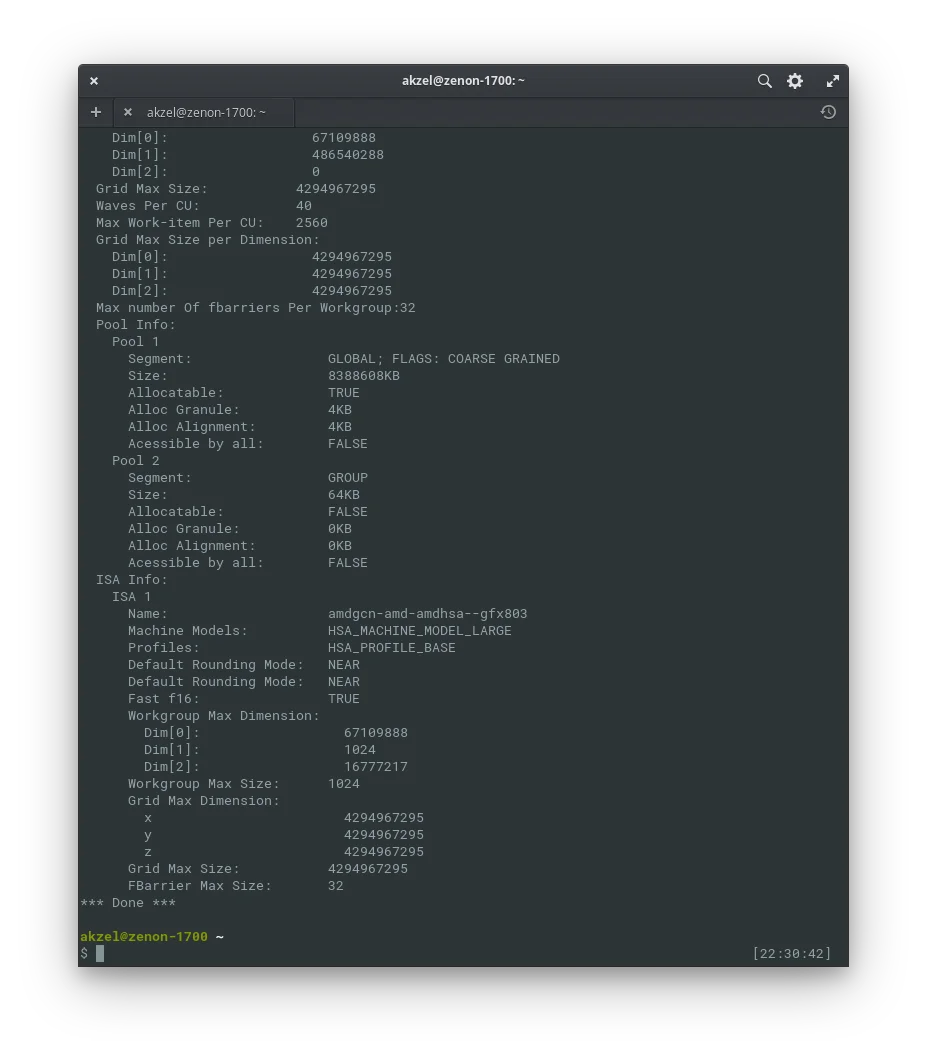
<p>After installation, to make sure ROCm was installed properly, run <code class="language-plaintext highlighter-rouge">/opt/rocm/bin/rocminfo</code>. The output should resemble this:</p>

<p><img src="https://spee.ch/@akzel94:0/Screenshot-from-2019-04-05-22-30-45.png?outpoint=6453418a6ed710707165e3639ba0b81d6e8b96172a6b240c1479c4fb2a1bb896:0" alt="rocminfo terminal output" /></p>

<h2 id="install-davinci-resolve">Install DaVinci Resolve</h2>


<p>Go to where you downloaded DaVinci Resolve, and extract it (on elementary, right-click and <code class="language-plaintext highlighter-rouge">Extract Here</code>), then drag the MakeResolveDeb tar.gz into that folder, and extract it within.</p>

<p><img src="https://spee.ch/@akzel94:0/Screen-record-from-2019-04-05-224114.gif?outpoint=d9d348f655eec6d9664c83b8c689230f409daeff44cd850ae50e537a5f49bd88:0" alt="Preparing MakeResolveDeb" /></p>

<p>Open a terminal and navigate to that folder. You’ll need to <code class="language-plaintext highlighter-rouge">sudo apt install xorriso</code>, as MakeResolveDeb requires it, then,</p>

<div class="language-plaintext highlighter-rouge"><div class="highlight"><pre class="highlight"><code>./makeresolvedeb_version-number-here.sh
</code></pre></div></div>

<p><code class="language-plaintext highlighter-rouge">version-number-here</code> being, of course, replaced with the version number of MakeResolveDeb that you downloaded. <code class="language-plaintext highlighter-rouge">makeresolvedeb_15.3-2.sh</code>, for example.</p>

<p>After it runs, you can install the newly-created .deb with <a href="https://appcenter.elementary.io/com.github.donadigo.eddy/">Eddy</a> on elementary; with Ubuntu Software; or with <code class="language-plaintext highlighter-rouge">sudo apt install ./davinci-resolve_version-number_amd64.deb</code></p>

<h2 id="conclusion">Conclusion</h2>

<p>If all went well, you should now be able to run DaVinci Resolve. If you ran into any problems along the way, or if you have suggestions for how this guide could be improved, please feel free to reach out to me on any of my socials.</p>]]></content><author><name>Akzel</name></author><category term="guides" /><category term="linux" /><category term="ubuntu" /><category term="elementary os" /><category term="davinci resolve" /><summary type="html"><![CDATA[A guide for AMD users to get DaVinci Resolve 15 running on elementary OS, Ubuntu, and other Ubuntu-based Linux distros.]]></summary></entry><entry><title type="html">Thoughts on PeerTube &amp;amp; LBRY</title><link href="https://zelikos.dev/blog/posts/2019-02-21-thoughts-peertube-lbry" rel="alternate" type="text/html" title="Thoughts on PeerTube &amp;amp; LBRY" /><published>2019-02-21T00:00:00-05:00</published><updated>2019-02-21T00:00:00-05:00</updated><id>https://zelikos.dev/blog/posts/thoughts-peertube-lbry</id><content type="html" xml:base="https://zelikos.dev/blog/posts/2019-02-21-thoughts-peertube-lbry"><![CDATA[<p>Recently, I synced my YouTube channel with LBRY, so most of my video content is now also available there. I like LBRY, because it’s “a free, open, and community-run digital marketplace,” as they put it <a href="https://lbry.io">on their website</a>. At first glance, it comes across as a decentralized alternative to platforms like YouTube, as most of what you’ll see in the LBRY app is video content (although, I’ve also seen some FOSS games there recently). However, there’s another free, open, and decentralized YouTube alternative you may be aware of: PeerTube.</p>

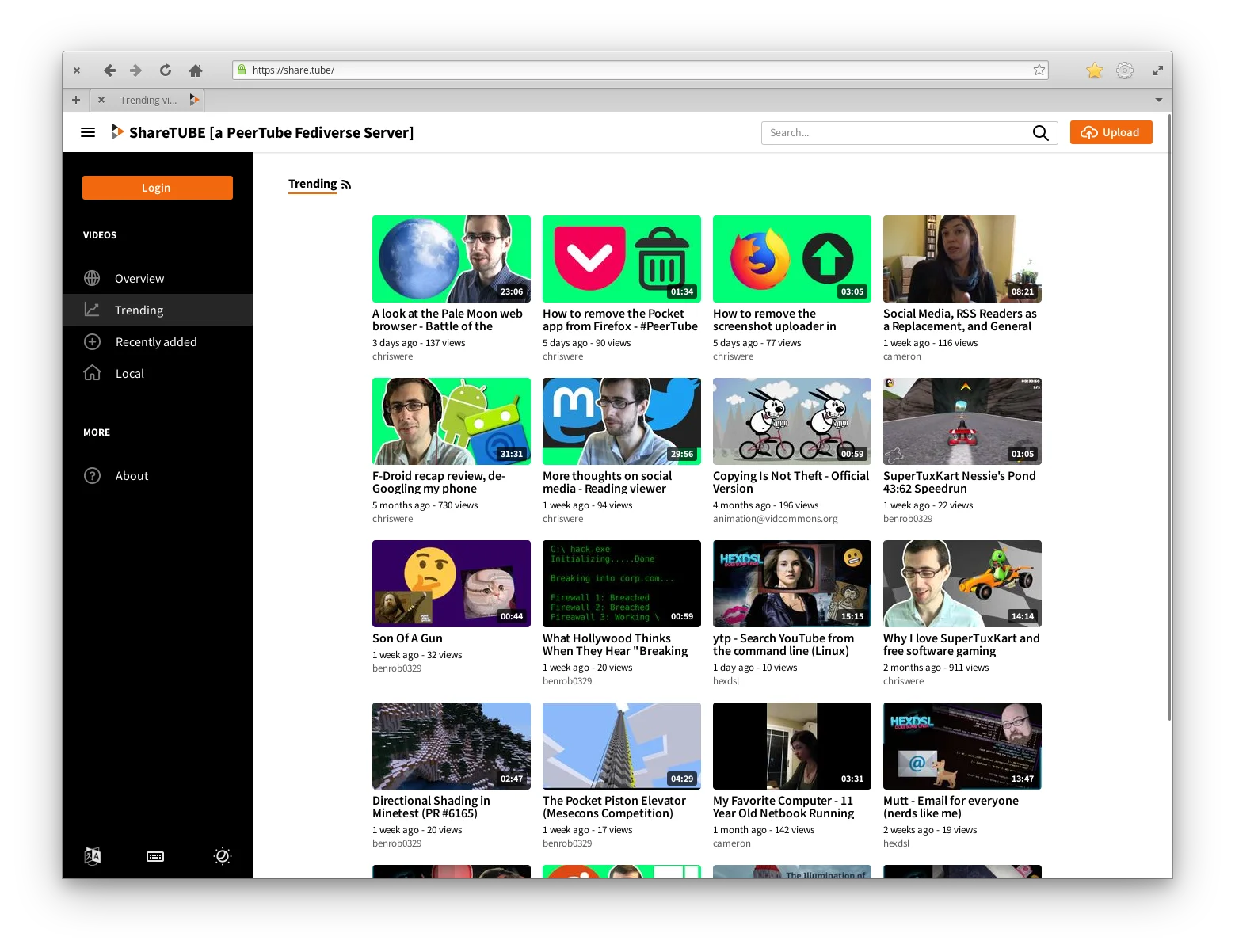
<p>PeerTube is built on ActivityPub, as part of the fediverse: there isn’t just one single PeerTube server, but rather a number of separate servers that federate with one another. In other words, different servers can communicate with one another; content that’s hosted on one server is accessible by users on another (provided that said server isn’t blocked).</p>

<p>LBRY, on the other hand, is built on blockchain technology. I’m much less familiar with how it works, but from what I understand, content on the LBRY blockchain is distributed among every user, with no servers required.</p>

<p>So… Which is better? <!--more--></p>

<p>With PeerTube, if you have the means, you can have your very own PeerTube instance to host your content; you have complete control over it, and it’s all available to the rest of the fediverse.</p>

<p><img src="https://spee.ch/0fcb29889612966cc2d3ea92cff8ff2d376e509c/sharetube-a-peertube-instance-2019-02-21.png" alt="A screenshot of ShareTUBE, one of many PeerTube instances." /></p>

<p>Though, what if you <em>don’t</em> have the means to host your own instance? Then you’re still reliant on someone <em>else’s</em> server. If that server goes down, then there goes everything you uploaded to it. Other than that, you may have a limit to how much you can upload, depending on the instance. Overall though, I <em>do</em> still believe that federation is better than relying on a single, central entity (i.e. YouTube).</p>

<p>So, how about LBRY? As mentioned before, it runs on blockchain tech, rather than a federation of many instances/servers like how PeerTube is. In very simple terms, it’s even <em>more</em> decentralized than the fediverse. In the case of LBRY, access to your published content is controlled by <em>you</em>—or more specifically, by whomever has access to your local LBRY wallet. If you lose access to that wallet, though, you do lose access to to <em>managing</em> the content associated with it, but the content itself remains on the network.</p>

<p>As for why it’s even called a “wallet”… LBRY uses its own cryptocurrency, called LBC. As a user, you can earn LBC by simply using the LBRY app; as a publisher, you “claim” a place for your content on the network with a deposit of LBC; this requires, in my experience, a very minuscule amount. You also have the option to charge LBC for others to view your content. Most of what I’ve seen so far has been with 0 charge, though.</p>

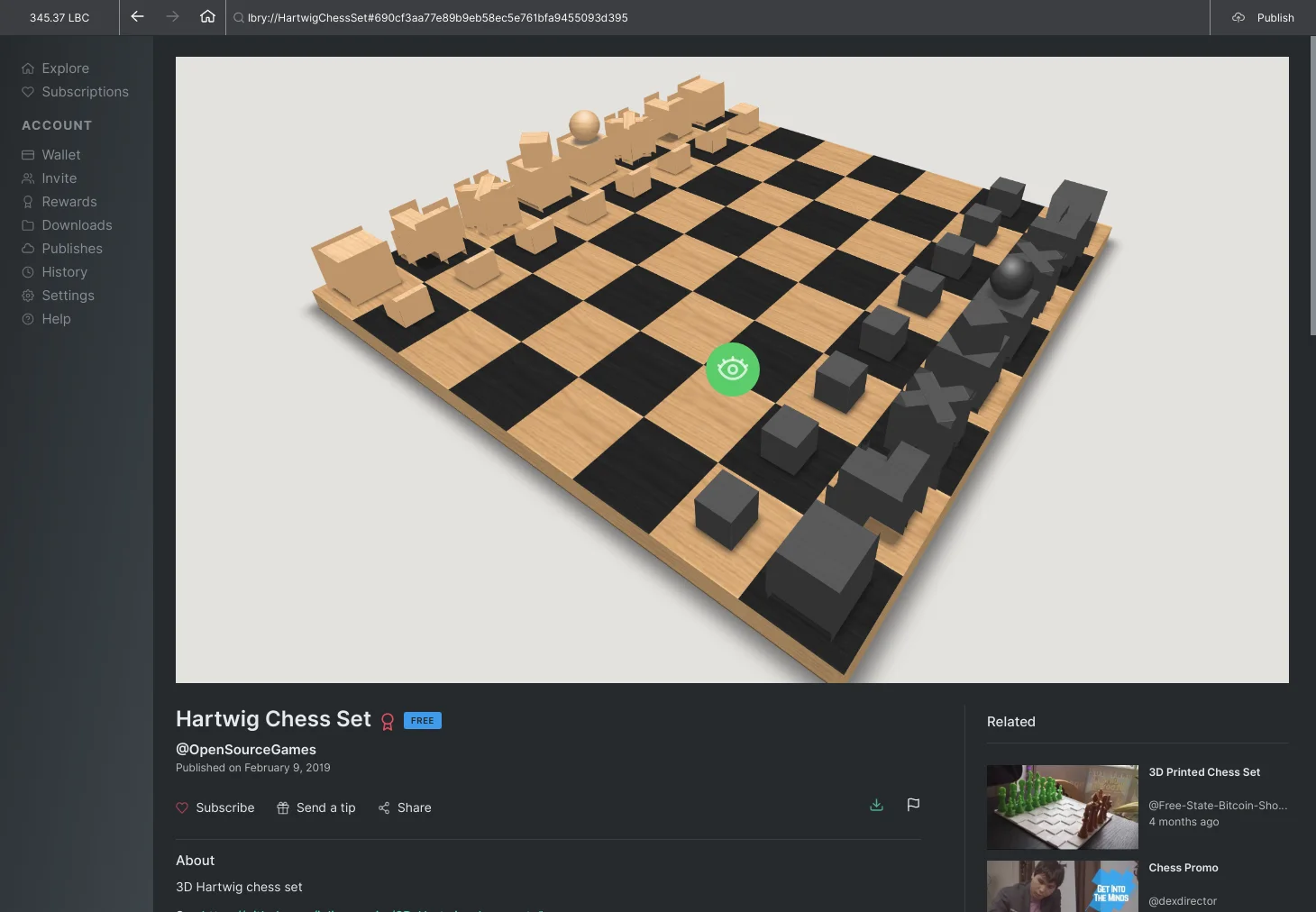
<p>While the primary focus of the LBRY app seems to be on video content, the LBRY protocol isn’t limited to <em>just</em> video. You can also host images, audio, and even games:</p>

<p><img src="https://spee.ch/03329a2ba91ed1afe3158183a8ac458eb3740b65/hartwig-chess-set-Screenshot-from-2019-02-21-204056.png" alt="Hartwig Chess Set, an open source chess game available on LBRY and Github." /></p>

<p><del>There’s also <a href="https://spee.ch/about">Spee.ch</a>, which is basically a website front-end to the LBRY network. You can publish to the LBRY network from it, either through a channel, or just anonymously—great for hosting images for blog posts.</del></p>

<p><strong>2022/10/28 Update</strong>: Spee.ch has long since been shut down; content that was uploaded to it is still accessible, but the website itself no longer is.</p>

<p>What really sets LBRY ahead of PeerTube, though, is that you can <a href="https://lbry.io/youtube">sync your YouTube channel</a> with the LBRY network, as I touched upon earlier. Very, very convenient.</p>

<p>Overall, I like both, but as a content creator, I find myself leaning more towards LBRY right now; I don’t have to host my own server, but I also don’t need to worry about an upload limit. Although, you can’t (yet) leave comments on videos, so community interaction may be better with PeerTube.</p>]]></content><author><name>Akzel</name></author><category term="posts" /><category term="peertube" /><category term="lbry" /><category term="youtube" /><summary type="html"><![CDATA[Recently, I synced my YouTube channel with LBRY, so most of my video content is now also available there. I like LBRY, because it’s “a free, open, and community-run digital marketplace,” as they put it on their website. At first glance, it comes across as a decentralized alternative to platforms like YouTube, as most of what you’ll see in the LBRY app is video content (although, I’ve also seen some FOSS games there recently). However, there’s another free, open, and decentralized YouTube alternative you may be aware of: PeerTube.]]></summary></entry><entry><title type="html">Why I Use Linux</title><link href="https://zelikos.dev/blog/posts/2019-02-10-why-i-use-linux" rel="alternate" type="text/html" title="Why I Use Linux" /><published>2019-02-10T00:00:00-05:00</published><updated>2019-02-10T00:00:00-05:00</updated><id>https://zelikos.dev/blog/posts/why-i-use-linux</id><content type="html" xml:base="https://zelikos.dev/blog/posts/2019-02-10-why-i-use-linux"><![CDATA[<p>In a previous blog post, <a href="/blog/posts/2019-02-03-why-i-use-elementaryos">Why I Use elementary OS</a>, I went over the various aspects of elementary OS that I like, and why it has become my favorite operating system to use. However, I haven’t talked about why I use <em>Linux</em>. Or, more accurately, Linux-based operating systems. I’ll be going over only desktop operating systems here, not mobile. <!--more--></p>

<p>Let’s start with why I <em>don’t</em> use other platforms. Take macOS, for instance: Not only is the whole Apple ecosystem a walled garden, their products are also fairly expensive. A Mac tends to be much more expensive than non-Apple computers with similar specs. Honestly, though, if for some reason I <em>had</em> to choose between macOS and Windows, despite being much more familiar with the latter, I’d go with the former. Windows is just awful.</p>

<p>There are a <em>lot</em> of reasons to dislike Windows, such as:</p>

<ul>
  <li>It boots up slowly, it shuts down slowly, it updates slowly, it <em>runs</em> slowly*</li>
  <li>While technically possible to delay updates, whether your computer updates or not is ultimately up to Windows itself</li>
  <li>Installing software is a pain, and you have to update programs individually</li>
  <li>In a way, they’re trying to resolve the previous point with the Windows Store, but then Windows will likely become its <em>own</em> walled garden, much like macOS</li>
  <li>Pre-installed software that you may not even want to use, but can’t uninstall</li>
  <li>It collects user data, and Microsoft has zero respect for its users’ privacy</li>
  <li>It frequently nags about OneDrive, whether you want to use it or not</li>
  <li>Troubleshooting problems is just a pain</li>
</ul>

<p><em>*while this issue is mitigated on more modern hardware, it is much more noticeable on older machines</em></p>

<p>…but one of the biggest things for me is the desktop itself. Even despite the problems mentioned above, quite frankly, I just don’t like having to <em>use</em> the Windows desktop. I’ve come to really appreciate more minimal desktop environments like GNOME and Pantheon, and Windows desktop just feels overly complicated in a number of areas. For example, let’s compare the Windows file explorer to elementary Files.</p>

<p><img src="https://66.media.tumblr.com/f1341751f6da57f3c28ab93f6d5d9854/tumblr_pmqlf3cnnA1rohz0jo2_1280.png" alt="The Windows file explorer, showing a slew of actions you can take with your files" /></p>

<p>Windows’ file explorer has a lot of buttons for actions you can take, and the above picture only shows <em>one tab</em>. I don’t mean to say that having more options is inherently a bad thing, but that just looks like a <em>mess</em> to me.</p>

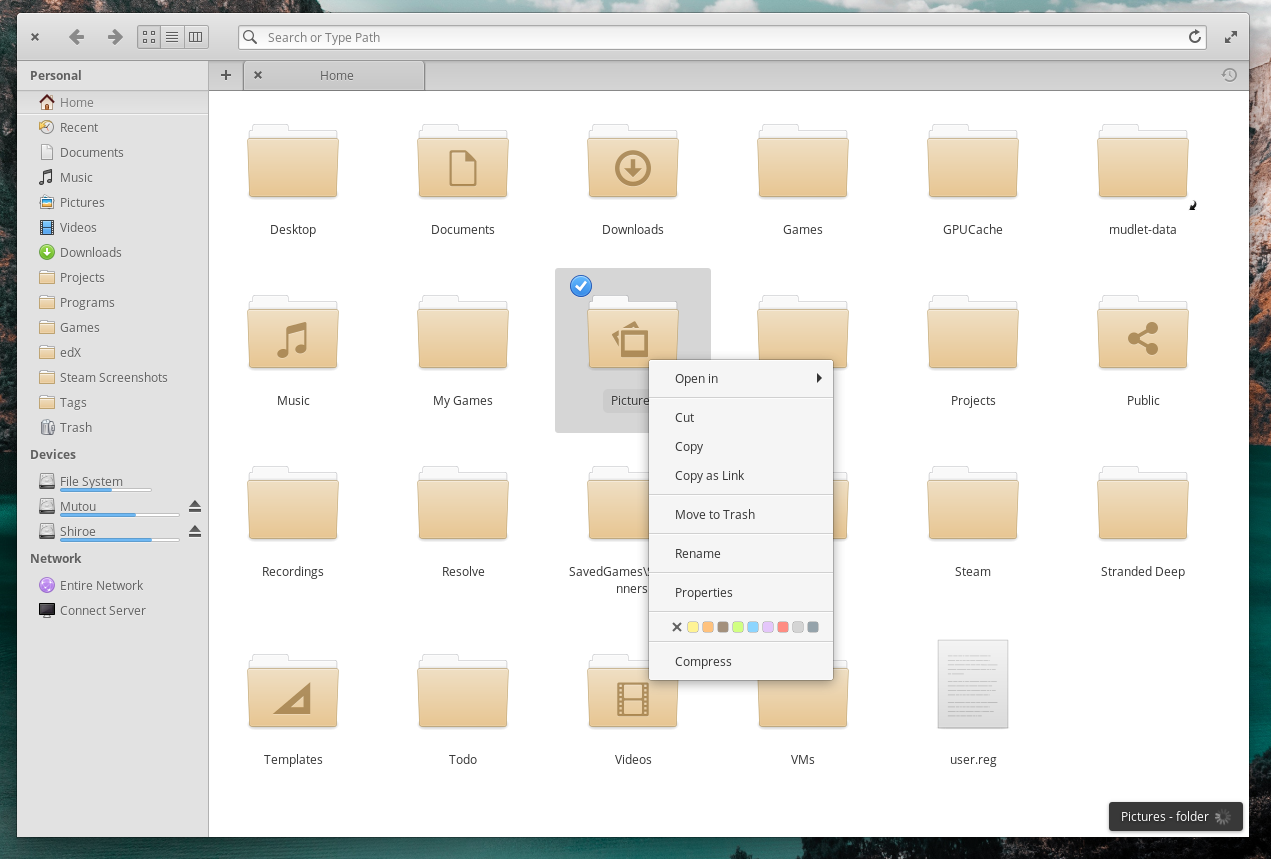
<p><img src="https://66.media.tumblr.com/4fd9d6aa4faf57785021ae5b46dad92b/tumblr_pmqlf3cnnA1rohz0jo1_1280.png" alt="The elementary Files app, with a right-click menu active" /></p>

<p>elementary Files, on the other hand, is much cleaner. Your view options are covered in the header bar, with the option of an icon grid, a list view, or column view; you can open tabs just below that, with the + (tabs being a feature that Windows’ file explorer lacks entirely); actions for files and folders themselves are handled contextually in the right-click menu. All in all, a much cleaner design that remains very functional <em>and</em> aesthetically-pleasing.</p>

<p>Again, I <em>don’t</em> think that having more options is inherently bad, but <em>presentation</em> is important. In this case, less is more.</p>

<p>Oh, and one more thing I about the Windows file explorer: if it freezes up and you have to kill the process, it takes the rest of your desktop with it. That’s not the case on <em>any</em> Linux desktop environment I’ve used.</p>

<p>That’s a rough summary of why I <em>don’t</em> use other platforms. So, why <em>do</em> I use Linux? Well, a lot of it goes hand in hand with why I use elementary OS, which, again, you can read about <a href="/blog/posts/2019-02-03-why-i-use-elementaryos">here</a>.</p>

<p>Of course, there are plenty of things that aren’t specific to elementary:</p>

<ul>
  <li>The filesystem structure feels a <em>lot</em> more intuitive to me than Windows’ drive-letter approach</li>
  <li>Every Linux distro I’ve tried boots faster, and overall feels more responsive than Windows ever has</li>
  <li>While many distros do come with software pre-installed, you can uninstall whatever you like</li>
  <li>Software is, generally, much quicker and easier to install and update</li>
  <li>System updates are never forced, and are only initiated with the users’ input</li>
  <li>Most distros <em>do</em> respect their users’ privacy, and don’t do any sort of data collection</li>
  <li>Most distros I’ve used have been significantly more stable than Windows</li>
  <li>When issues do arise, troubleshooting is <em>much</em> easier than on Windows</li>
  <li>I believe that FOSS is the best way to do software, even if I do make some exceptions (such as Discord and Steam)</li>
</ul>

<p>Finally, and the most important to me: the freedom of choice, and control over your own computer. While I love and advocate for elementary OS, it isn’t for everyone, but there are <em>so many</em> Linux distributions to choose from, as well as desktop environments. Do you like GTK, but hate GNOME? Cinnamon and MATE are great. Do you prefer rolling releases, but want a more curated experience? Go with Solus. Do you want a system that’s precisely tailored to your exact liking? Arch is ready for you. With all of the options in the Linux world, there really is something for everyone.</p>]]></content><author><name>Akzel</name></author><category term="posts" /><category term="linux" /><category term="macos" /><category term="windows" /><summary type="html"><![CDATA[Why I prefer to use Linux-based operating systems versus more minstream options like Windows and macOS.]]></summary></entry><entry><title type="html">AppIndicators in elementary OS</title><link href="https://zelikos.dev/blog/2019-02-05-appindicators-in-elementaryos" rel="alternate" type="text/html" title="AppIndicators in elementary OS" /><published>2019-02-05T00:00:00-05:00</published><updated>2019-02-05T00:00:00-05:00</updated><id>https://zelikos.dev/blog/appindicators-in-elementaryos</id><content type="html" xml:base="https://zelikos.dev/blog/2019-02-05-appindicators-in-elementaryos"><![CDATA[<p>The latest version of elementary OS, 5.0 (codenamed Juno), has been fantastic since its debut back in October 2018. While the overall look and feel is the same as before, many aspects of the OS were further refined and pollished. All-in-all, Juno was a great release, however, like many things elementary, it wasn’t without some bits of controversy. <!--more--></p>

<p>A notable omission in 5.0 was support for application indicators (perhaps better known as “system tray icons”).</p>

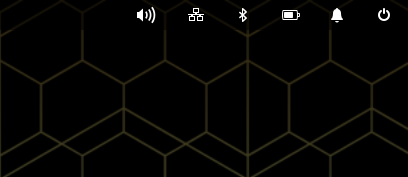
<p><img src="https://66.media.tumblr.com/450d1c48abec473dcadeec202a9b2546/tumblr_pmgxczDiiy1rohz0jo1_500.png" alt="The right side of wingpanel, showing the Pantheon desktop system indicators" /></p>

<p>elementary OS <em>does</em> still support indicators. <em>System</em> indicators. In other words, indicators intended to give quick information about the state of the system, rather than application-specific indicators.</p>

<p>A lot of people see this as a negative thing. After all, appindicator icons are part of the traditional desktop paradigm, right?</p>

<p>So what? Tradition does not always equal <em>best</em>. I understand that a lot of people like to do things the way they’re used to, but, especially on elementary OS, appindicators just feel out of place to me.</p>

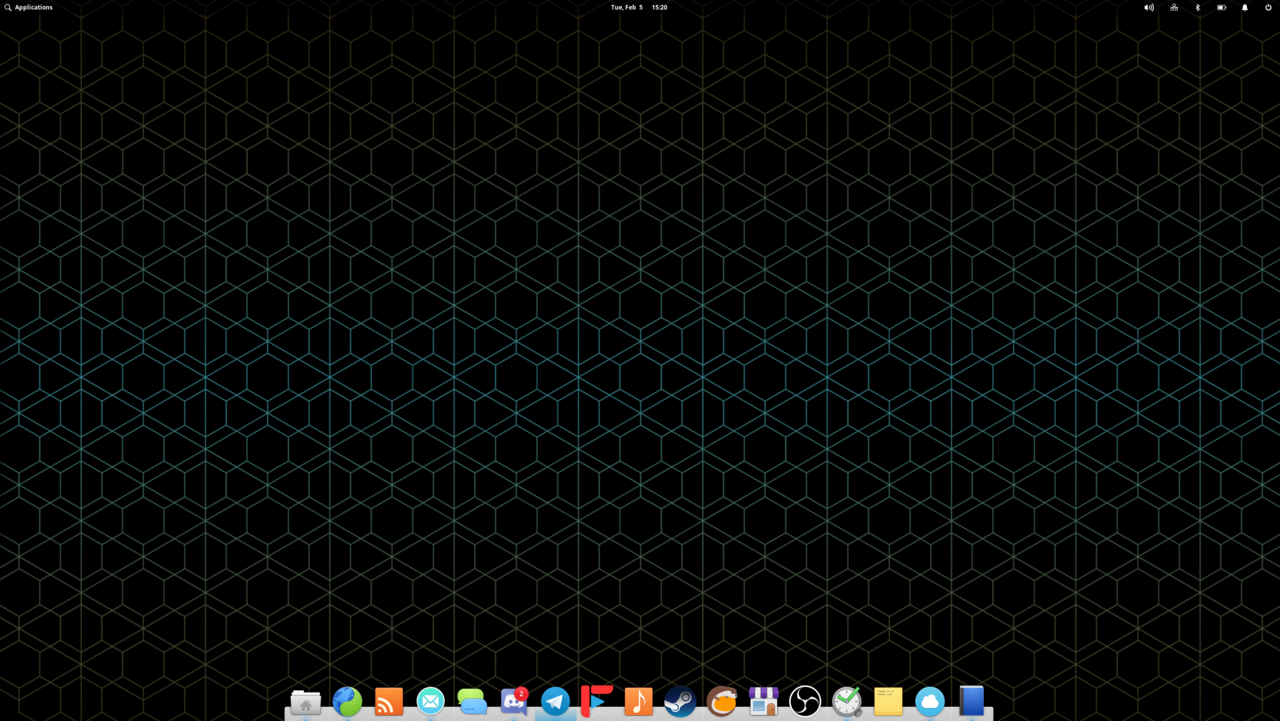
<p>Consider the layout of the Pantheon desktop: You have the wingpanel at the top, with application launcher on the left, date/time in the center, and system indicators on the right. At the bottom, you have the dock, where all of your pinned and currently-running applications are displayed.</p>

<p><img src="https://66.media.tumblr.com/beaed6d34f5fe2e845275d6c6531cf0d/tumblr_pmgz7hwtRK1rohz0jo1_1280.png" alt="An image of my elementary OS desktop" /></p>

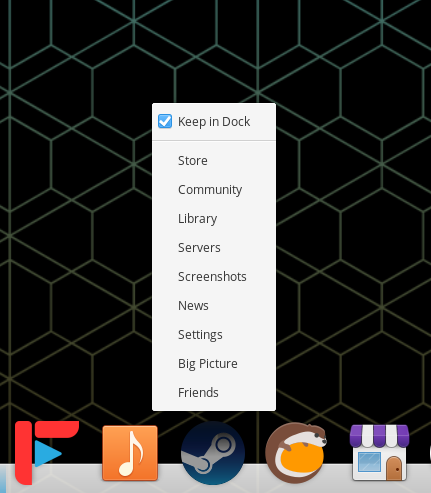
<p>Since your applications are already displayed in the dock… why would you want a <em>separate</em> set of icons up in the top-right, just for extra options of the respective application? If anything, those actions should be accessible by right-clicking an application’s icon in the dock. Native elementary applications support (and encourage) this, as do some third-party apps such as Steam. Having a separate location for these sorts of quick-actions just doesn’t make sense.</p>

<p><img src="https://66.media.tumblr.com/8da335de27671cc883171ed33d8bfa8f/tumblr_pmgz4eGXjy1rohz0jo1_500.png" alt="Steam's quicklist in the elementary OS dock" /></p>

<p>The elementary OS Human Interface Guidelines go into this, and how applications <em>should</em> integrate with the system, in much more detail <a href="https://elementary.io/docs/human-interface-guidelines#desktop-integration">here</a>. It is also discussed in <a href="https://github.com/elementary/wingpanel/issues/96#issuecomment-401412541">this Github issue</a>.</p>

<p>Unfortunately, while I do believe that the elementary OS approach is better, the biggest problem is that many third-party applications <em>rely</em> on an appindicator for certain actions. So, many of them actually <em>lose</em> functionality on elementary OS.</p>

<p>For me, this isn’t a huge issue. None of the applications that I regularly use suffer much from this, if at all. However, there are quite a few people out there that rely on apps that <em>need</em> appindicator support to function completely. While I would urge people to find alternative applications that don’t rely on it, this isn’t always possible. So if you <em>are</em> in that situation, there are guides available to restore appindicator support in elementary OS Juno, such as <a href="https://github.com/mdh34/elementary-indicators">this one</a>, or <a href="https://www.linuxuprising.com/2018/08/how-to-re-enable-ayatana-appindicators.html">this one</a>. Just remember that doing this is unsupported on elementary, and <em>may</em> lead to issues.</p>

<p>All in all, I’m in favor of elementary OS’s decision to remove appindicator support, and I completely understand their reasoning for doing so. But, I also understand why people are mad about it. This was definitely a controversial decision, but I hope it pays off for elementary in the long run.</p>]]></content><author><name>Akzel</name></author><category term="" /><category term="" /><category term="linux" /><category term="elementary os" /><summary type="html"><![CDATA[Thoughts on the removal of AppIndicators support in elementary OS.]]></summary></entry><entry><title type="html">Why I Use elementary OS</title><link href="https://zelikos.dev/blog/posts/2019-02-03-why-i-use-elementaryos" rel="alternate" type="text/html" title="Why I Use elementary OS" /><published>2019-02-03T00:00:00-05:00</published><updated>2019-02-03T00:00:00-05:00</updated><id>https://zelikos.dev/blog/posts/why-i-use-elementaryos</id><content type="html" xml:base="https://zelikos.dev/blog/posts/2019-02-03-why-i-use-elementaryos"><![CDATA[<p>Ever since I began using Linux in 2016, I’ve gone through quite a few distributions in search of one to call “home.”</p>

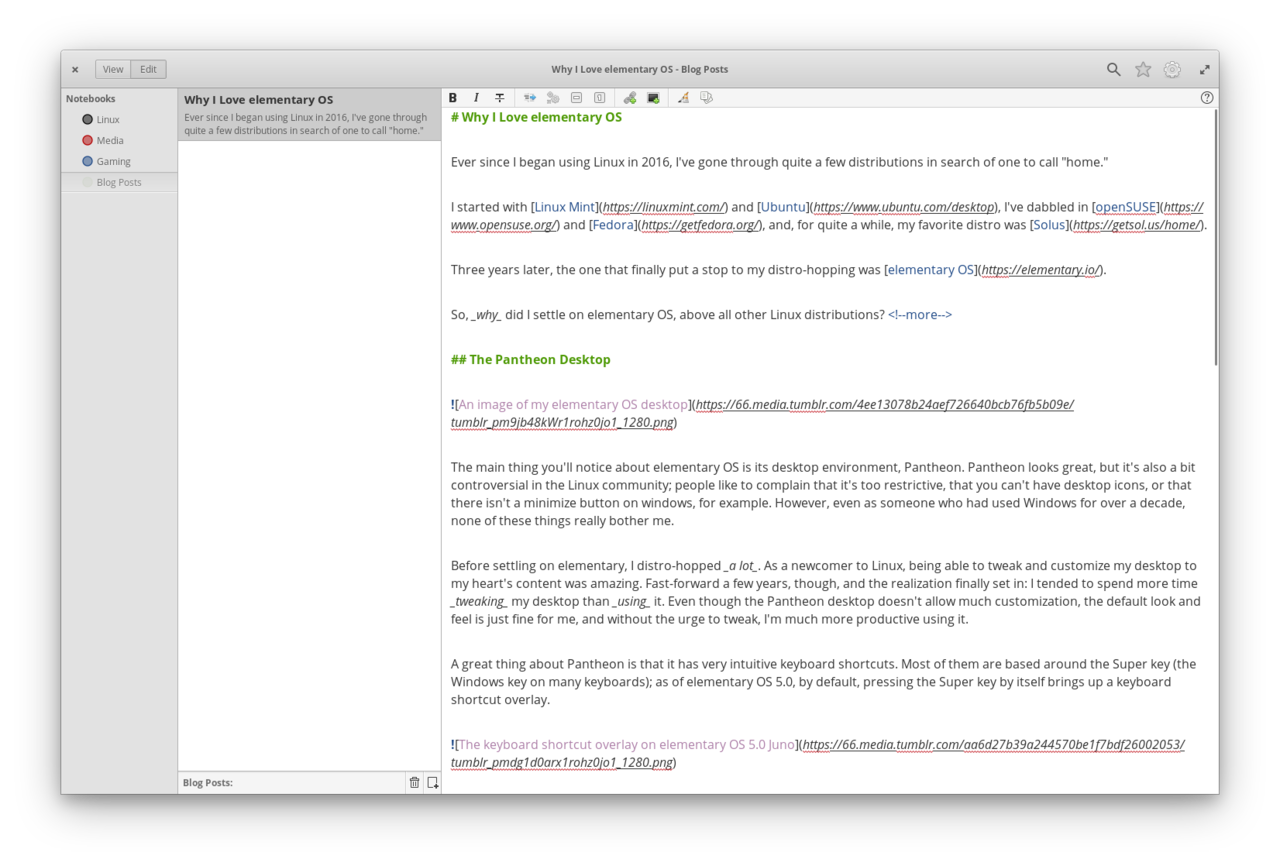
<p>I started with <a href="https://linuxmint.com/">Linux Mint</a> and <a href="https://www.ubuntu.com/desktop">Ubuntu</a>, I’ve dabbled in <a href="https://www.opensuse.org/">openSUSE</a> and <a href="https://getfedora.org/">Fedora</a>, and, for quite a while, my favorite distro was <a href="https://getsol.us/home/">Solus</a>.</p>

<p>Three years later, the one that finally put a stop to my distro-hopping was <a href="https://elementary.io/">elementary OS</a>.</p>

<p>So, <em>why</em> did I settle on elementary OS, above all other Linux distributions? <!--more--></p>

<h2 id="the-pantheon-desktop">The Pantheon Desktop</h2>

<p><img src="https://66.media.tumblr.com/4ee13078b24aef726640bcb76fb5b09e/tumblr_pm9jb48kWr1rohz0jo1_1280.png" alt="An image of my elementary OS desktop" /></p>

<p>The main thing you’ll notice about elementary OS is its desktop environment, Pantheon. Pantheon looks great, but it’s also a bit controversial in the Linux community; people like to complain that it’s too restrictive, that you can’t have desktop icons, or that there isn’t a minimize button on windows, for example. However, even as someone who had used Windows for over a decade, none of these things really bother me.</p>

<p>Before settling on elementary, I distro-hopped <em>a lot</em>. As a newcomer to Linux, being able to tweak and customize my desktop to my heart’s content was amazing. Fast-forward a few years, though, and the realization finally set in: I tended to spend more time <em>tweaking</em> my desktop than <em>using</em> it. Even though the Pantheon desktop doesn’t allow much customization, the default look and feel is just fine for me, and without the urge to tweak, I’m much more productive using it.</p>

<p>A great thing about Pantheon is that it has very intuitive keyboard shortcuts. Most of them are based around the Super key (the Windows key on many keyboards); as of elementary OS 5.0, by default, pressing the Super key by itself brings up a keyboard shortcut overlay.</p>

<p><img src="https://66.media.tumblr.com/aa6d27b39a244570be1f7bdf26002053/tumblr_pmdg1d0arx1rohz0jo1_1280.png" alt="The keyboard shortcut overlay on elementary OS 5.0 Juno" /></p>

<p>Not shown on the overlay, but something I’d like to point out to those who complain about the lack of a minimize button, is the Super+H shortcut, which minimizes the active window. For many people, old habits die hard, but I think it’s much easier to use a keyboard shortcut—or click an application’s dock icon—to minimize a window than it is to click on a small minimize button.</p>

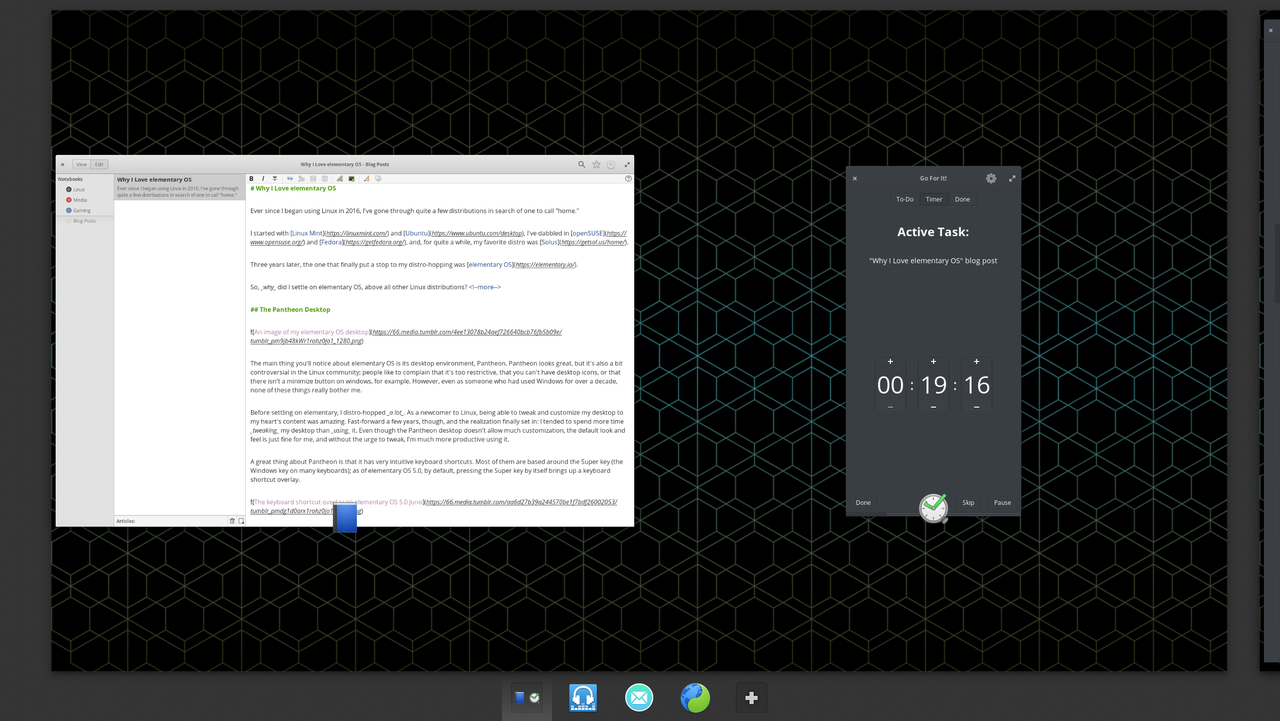
<p>Even with those options, though, I don’t usually minimize windows. Instead, I prefer using multiple workspaces and Pantheon’s Multitasking View.</p>

<p><img src="https://66.media.tumblr.com/8acbf36f58267c3b09a3cd7645de8c2d/tumblr_pmdjfmITip1rohz0jo1_1280.png" alt="Pantheon's Multitasking View; two windows are side-by-side (_Notes-Up_ and _Go For It!_), with a preview of 3 other workspaces at the bottom" /></p>

<p>Accessible with either Super+Down or Super+S, the Multitasking View let’s you see every application you have open on the current workspace. At the bottom of the view, you can also see all of your active workspaces, along with the icon of any open application on its respective workspace. While in the Multitasking View, you have a few ways to cycle between workspaces: Super+Left and Right (which also work outside of the Multitasking View), or by scrolling your mouse wheel.</p>

<p>Overall, Pantheon may be simple at first glance, but it certainly doesn’t lack functionality.</p>

<h2 id="appcenter">AppCenter</h2>

<p><img src="https://66.media.tumblr.com/6e3bc09dd72082e2c66c81529e528155/tumblr_pmdk6pBYOf1rohz0jo2_1280.png" alt="The elementary OS AppCenter" /></p>

<p>AppCenter is one of the key applications of elementary OS; it features a wide variety of free-and-open-source applications, built on Vala and GTK+, that follow the elementary OS Human Interface Guidelines. These curated apps are guaranteed to match elementary’s look and feel, ensuring a cohesive experience for users.</p>

<p>One problem with open source software development is funding. With AppCenter, the elementary team aims to solve this problem with a pay-what-you-want model. Developers are able to set a suggested price for their apps, but users can choose any price they want—including zero. Users can also go back and pay for an app later if they choose.</p>

<p>AppCenter has <em>a lot</em> of great applications. One of those is <a href="https://appcenter.elementary.io/com.github.philip-scott.notes-up">Notes-Up</a>, a notes manager with an easy-to-use markdown editor. As I’m starting this blog, I’ve been using Notes-Up to write this post, since Write.as supports Markdown. There may be other, more purpose-built apps for doing this, but Notes-Up does let me preview the final form of the post, as well as having an easy-to-access local copy of it. Very nice.</p>

<p><img src="https://66.media.tumblr.com/655d95006ba6a33ec3684a16141320ea/tumblr_pmdns3fskC1rohz0jo1_1280.png" alt="Notes-Up, a notebook app for elementary OS, which features a Markdown editor for note-taking." /></p>

<p>Some other favorites include: <a href="https://appcenter.elementary.io/com.github.donadigo.appeditor">AppEditor</a>, an app that lets you customize the menu entries of applications; <a href="https://appcenter.elementary.io/com.github.donadigo.eddy.desktop">Eddy</a>, which allows users to install .deb packages of applications that aren’t available in AppCenter; <a href="https://appcenter.elementary.io/com.github.jmoerman.go-for-it">Go For It!</a>, a productivity app which uses the Todo.txt format, and has a built-in productivity timer (which is great for those that use the <a href="https://en.wikipedia.org/wiki/Pomodoro_Technique">Pomodoro Technique</a>); <a href="https://appcenter.elementary.io/com.github.artemanufrij.playmymusic">Melody</a>, an alternative music player especially suited for those with large local music libraries.</p>

<p>There’s also <a href="https://appcenter.elementary.io/com.github.cassidyjames.ephemeral">Ephemeral</a>, a privacy-focused web browser that protects against tracking and automatically deletes your browsing history when closed. I’ve made a video going over Ephemeral in a bit more detail, which you can find <a href="https://youtu.be/DkPvrUM5JcM">here</a>.</p>

<h2 id="conclusion">Conclusion</h2>

<p>Since all parts of elementary OS are free and open source, you <em>could</em> use parts of it on other Linux distros. Pantheon is fairly well-supported on Fedora, and many AppCenter applications are available on Flathub—you can also just build them from the source code.</p>

<p>However, I’d much rather use them on elementary; since Pantheon is developed <em>by</em> the elementary team, you can be sure that it will work best <em>on</em> elementary OS. While many AppCenter apps <em>are</em> on Flathub, in many cases, they’re only there due to the community, rather than the developers themselves, which can cause unanticipated problems. So, if you want to use elementary applications, the best way is on elementary OS itself; it’s much easier to support the developers through AppCenter, anyway.</p>

<p>Finally, elementary OS is built atop Ubuntu, with version 5.0 (Juno) being built upon Ubuntu 18.04, the latest long-term support release. This provides a stable foundation and the ability to run virtually any application that works on Ubuntu proper.</p>

<p>With the Pantheon desktop, AppCenter, and a rock-solid Ubuntu base, <a href="https://elementary.io">elementary OS</a> has become not only my favorite Linux distribution, but my favorite operating system entirely.</p>]]></content><author><name>Akzel</name></author><category term="posts" /><category term="linux" /><category term="elementary os" /><category term="linux mint" /><category term="fedora" /><category term="solus" /><summary type="html"><![CDATA[Why elementary OS became my Linux OS of choice.]]></summary></entry></feed>